You can also create a new offer, add the elements and prices you like there and save the product to your library!
## Product structure Data for a product is always filled according to the same structure. This structure also shows the relations of all data among each other. - A product template can contain a subproduct template, can have a main [service ](https://help.advatra.com/books/knowledge-base/page/services "Services")and/or an additional service, and has various properties. - A subproduct template is attached to a product template, can have a main service and/or an additional service, and has different properties. [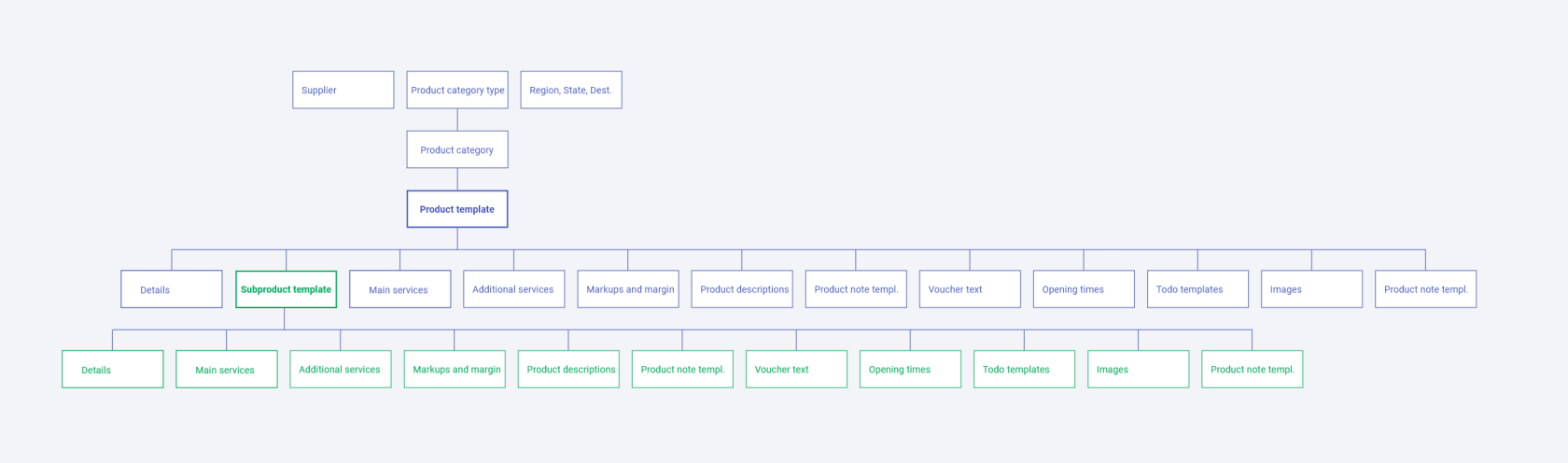](https://help.advatra.com/uploads/images/gallery/2022-06/image-1654691712130.png) ### Product structure in advatra In the application on advatra, the product structure is displayed in the form of a side menu on the product template and the subproduct template. So you know if you are on the main product or subproduct template. [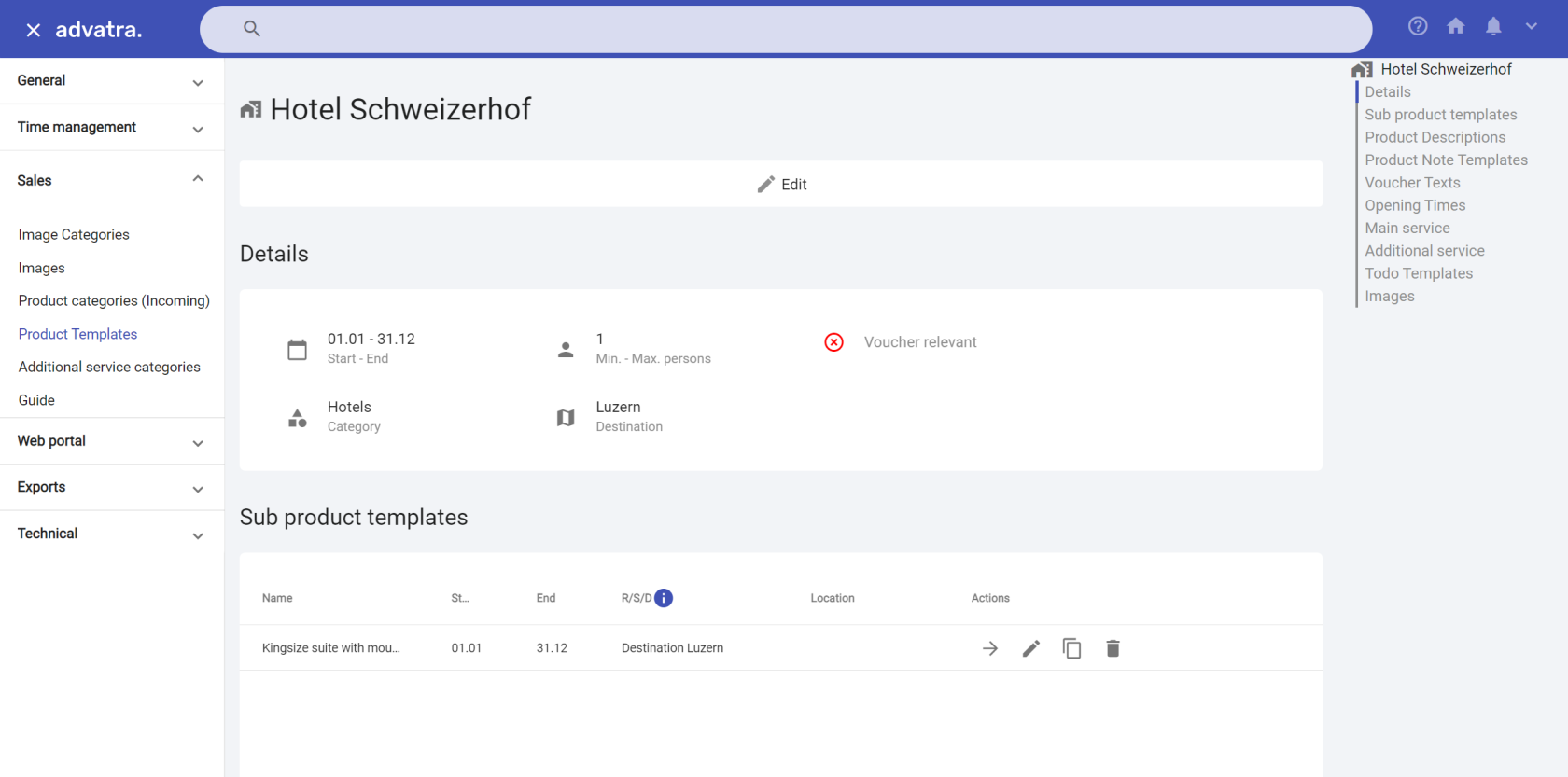](https://help.advatra.com/uploads/images/gallery/2022-06/image-1654691734946.png)Before you create a product template, you must have filled in the following information: **Supplier, Locations, Product categories, Image categories, Images**
Create a product template incoming and fill in the detail information: **Supplier** As soon as you add a supplier, the fields Name and Mail will be filled in automatically, because the information is already stored in the supplier.If you assign a supplier to the product template, all subproduct templates will automatically have the same supplier. However, you can overwrite these as you wish. If you want to store different suppliers for your subproduct templates, do not store a supplier in the product template.
**Min. and Max. Person** If you have a product template where the maximum number of people cannot be defined exactly, such as a hotel, then only insert a minimum number of people. (Min. Person = 1) **Duration** Shows the duration of the activity in hours per day. A product template with the product category type "hotel" should always have at least a duration of 24 hours. **Mail** This email will be used for the automatic email generation features of the to-dos. Mostly this is the booking email address, like *bookings@schweizerhof-luzern.ch.* **Location** A Product template must be linked with a location.If a product template has set one of them, the subproduct template can only use the next smaller entity. (Large > Medium > Small)
**Product categories** Choose from your own created product categories. Once you have created the product template, you can add more information on the product overview page like: - [Subproducts](https://help.advatra.com/books/knowledge-base/page/subproduct-templates "Subproduct templates") - Descriptions - [Notes](https://help.advatra.com/books/knowledge-base/page/product-notes "Product notes") - Voucher texts - [Opening times](https://help.advatra.com/books/knowledge-base/page/opening-times "Opening times") - [Main services](https://help.advatra.com/books/knowledge-base/page/services "Services") - [Additional services](https://help.advatra.com/books/knowledge-base/page/services "Services") - [Markup and margin](https://help.advatra.com/books/knowledge-base/page/markup-and-margin "Markup and margin") - [To-do templates](https://help.advatra.com/books/knowledge-base/page/to-do-templates "To-do templates") - [Images](https://help.advatra.com/books/knowledge-base/page/images "Images") # Subproduct templates A subproduct template is always attached to a [product template](https://help.advatra.com/books/knowledge-base/page/product-templates "Product templates"). A product template can contain several subproduct templates. *(Product template: Hotel Schweizerhof Lucerne, subproduct template 1: double room, subproduct template 2: suite with lake view)* A trip consists of several product templates with the desired subproduct templates. ## Product structure Data for a product is always filled according to the same structure. This structure also immediately shows the relationships of all data among each other. - A product template can contain a subproduct template, can have a main service and/or an additional service, and has different properties. - A subproduct template is attached to a product template, can have a main service and/or an additional service, and has different properties. [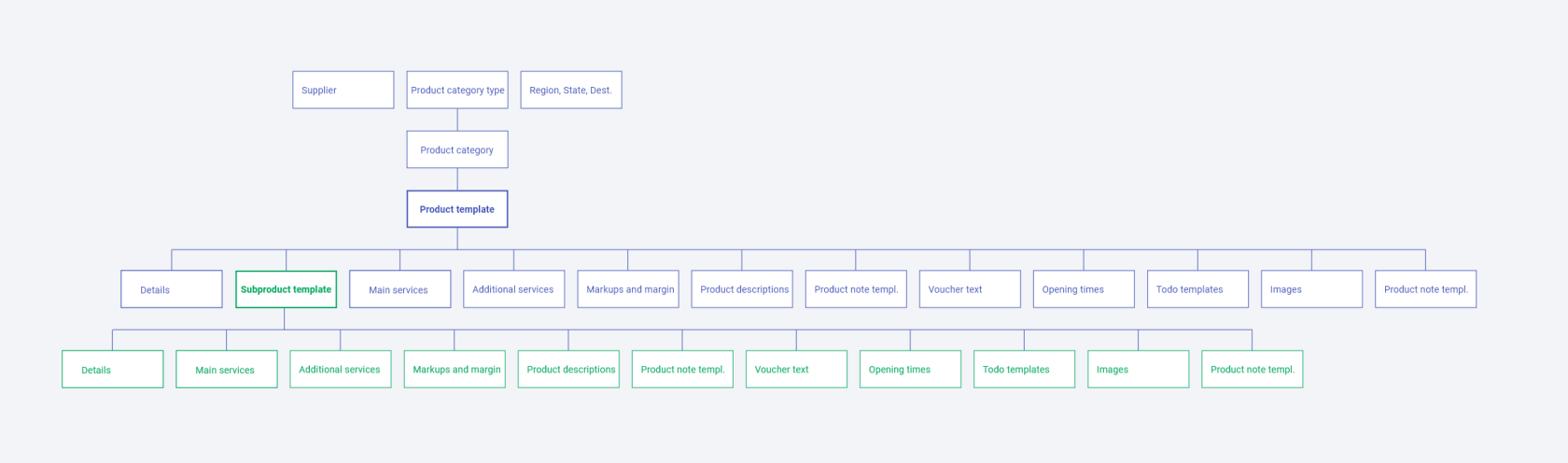](https://help.advatra.com/uploads/images/gallery/2022-06/image-1654693134921.png) ## CreateBefore you create a subproduct template template, you must have created a [product template](https://help.advatra.com/books/knowledge-base/page/product-templates "Product templates")
Fill in the details: **Supplier, Date, Mail, Destination** When creating a subproduct template, it takes over the information from the main product for: Supplier, date, mail and destination.If you have not assigned a supplier to your product template, you can store different suppliers on your subproduct templates. Here, too, you can overwrite them as you wish.
**Location** A Product template must be linked with a location.If a product template has set one of them, the subproduct template can only use the next smaller entity. (Large > Medium> Small)
Once you have created the subproduct template, you can add more information on the product overview page like: - Descriptions - [Notes](https://help.advatra.com/books/knowledge-base/page/product-notes "Product notes") - Voucher texts - [Opening times](https://help.advatra.com/books/knowledge-base/page/opening-times "Opening times") - [Main services](https://help.advatra.com/books/knowledge-base/page/services "Services") - [Additional services](https://help.advatra.com/books/knowledge-base/page/services "Services") - [Markup and margin](https://help.advatra.com/books/knowledge-base/page/markup-and-margin "Markup and margin") - [To-do templates](https://help.advatra.com/books/knowledge-base/page/to-do-templates "To-do templates") - [Images](https://help.advatra.com/books/knowledge-base/page/images "Images") - # Product notes **Menu: Sales → Product templates/Subproduct → Product note template** Note templates in different languages can be attached to a product. The note templates are displayed in the document as soon as the product is added. ## Create and edit Choose between internal and external note templates **Internal** note templates are displayed in a document under Internal notes and cannot be included in an Itinerary. **External** note templates are displayed in a document under Product notes and can be displayed in an Itinerary.Note that the language of the notes must match the language of the document for the notes to be displayed. (The document language can be defined when creating or edited under Properties).
# Opening times **Menu: Sales → Product templates/Subproduct templates → Opening times** Opening hours of product templates and subproduct templates can be stored directly on the respective template. If you have two different opening times on a Monday, for example on Mondays from 11 am to 1 pm and from 7 pm to 11 pm, then you store one opening time on Monday at noon and a second one in the evening.If you do not enter opening hours, the 24 hours simply apply. You do not have to enter opening hours from 00:00 - 23:59.
Holidays are entered globally into the system here: [Holidays](https://help.advatra.com/books/knowledge-base/page/holidays "Holidays"). # Services ## What is a service? 1. Services can be divided into main services and additional services. 2. Several main and additional services can be created with different prices. 3. Different prices are called price categories, one or more of which are assigned to products. 4. Main services and additional services are always linked to a [product template](https://help.advatra.com/books/knowledge-base/page/product-templates "Product templates") or a [subproduct template](https://help.advatra.com/books/knowledge-base/page/subproduct-templates "Subproduct templates"). ### Advantages of services - With services, price structures can be defined for a group of products and not only for single products. - Price changes can be made across a group of products with just one click. - Services can be used to determine which products are best suited to a trip, at what times, for what number of participants, etc. ### Structure of services - A product template can be linked to a main service. The additional service is optional. - A subproduct template can be linked to a main service. The additional service is optional. [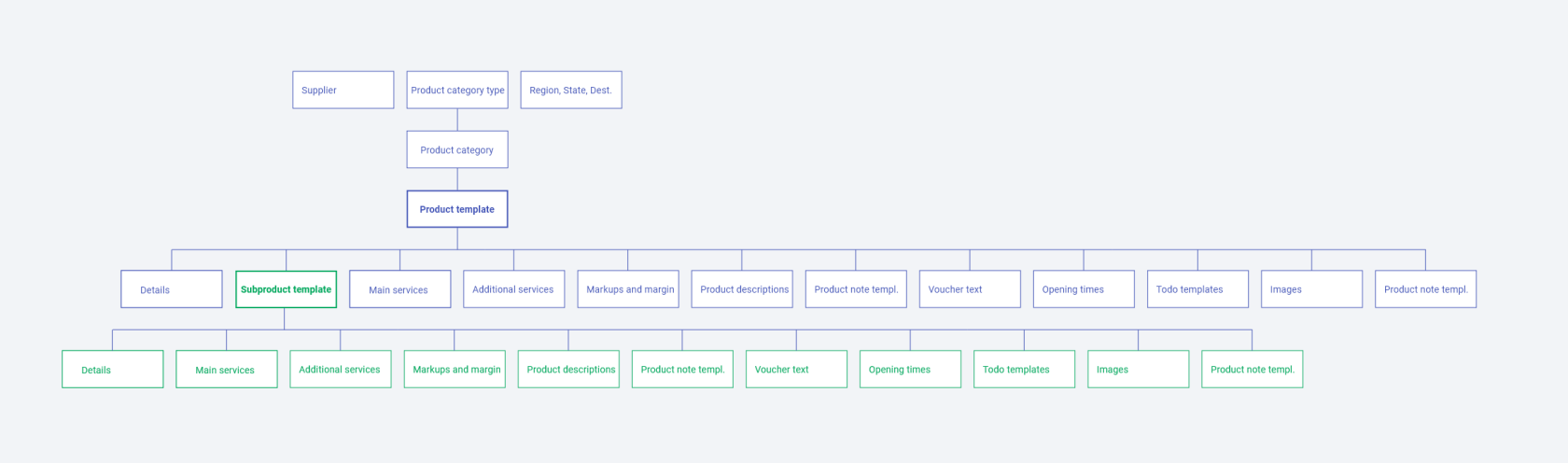](https://help.advatra.com/uploads/images/gallery/2022-06/image-1654693341444.png) ## Additional service category An additional service has an [additional service category](https://help.advatra.com/books/knowledge-base/page/additional-service-categories "Additional service categories"). With this, the services can be divided. This helps later while adding the product to an offer. # Additional service categories **Menu: Sales → Additional service categories** Additional services can be divided into additional service categories. These simplify the process of adding product templates to a document. ## CreateFor example, the to-do template "Reserve a chauffeur" is attached to the product template "Limousine Service". Or the product template "Viktoria Jungfrau Grand Hotel" has the To-do template "Check hotel availability".
**Name** Name of the to-do template **Deadline in days** For example: 5 → When is the deadline of this to-do, based on the "due by" value. **Due by** **from creation day**: the to-do always appears 5 days after the document has been created **before start date**: the to-do always appears 5 days before the start date of the trip **Type** the to-dos can only be used on the selected document type: offer incoming or confirmation incoming **Internal or external** **Internal** to-dos contain information that is only relevant for your staff, i.e. for internal use The collected information of the **external** to-dos can be viewed by your clients and/or travellers - depending on your export configuration. ## How does a to-do template become a to-do? Create or navigate to a documentTo-do templates with the type offer can only be added to an Offer, To-do templates with the type confirmation can only be added to a confirmation.
Under "More → To-dos" there is an overview of your to-dos on your document. [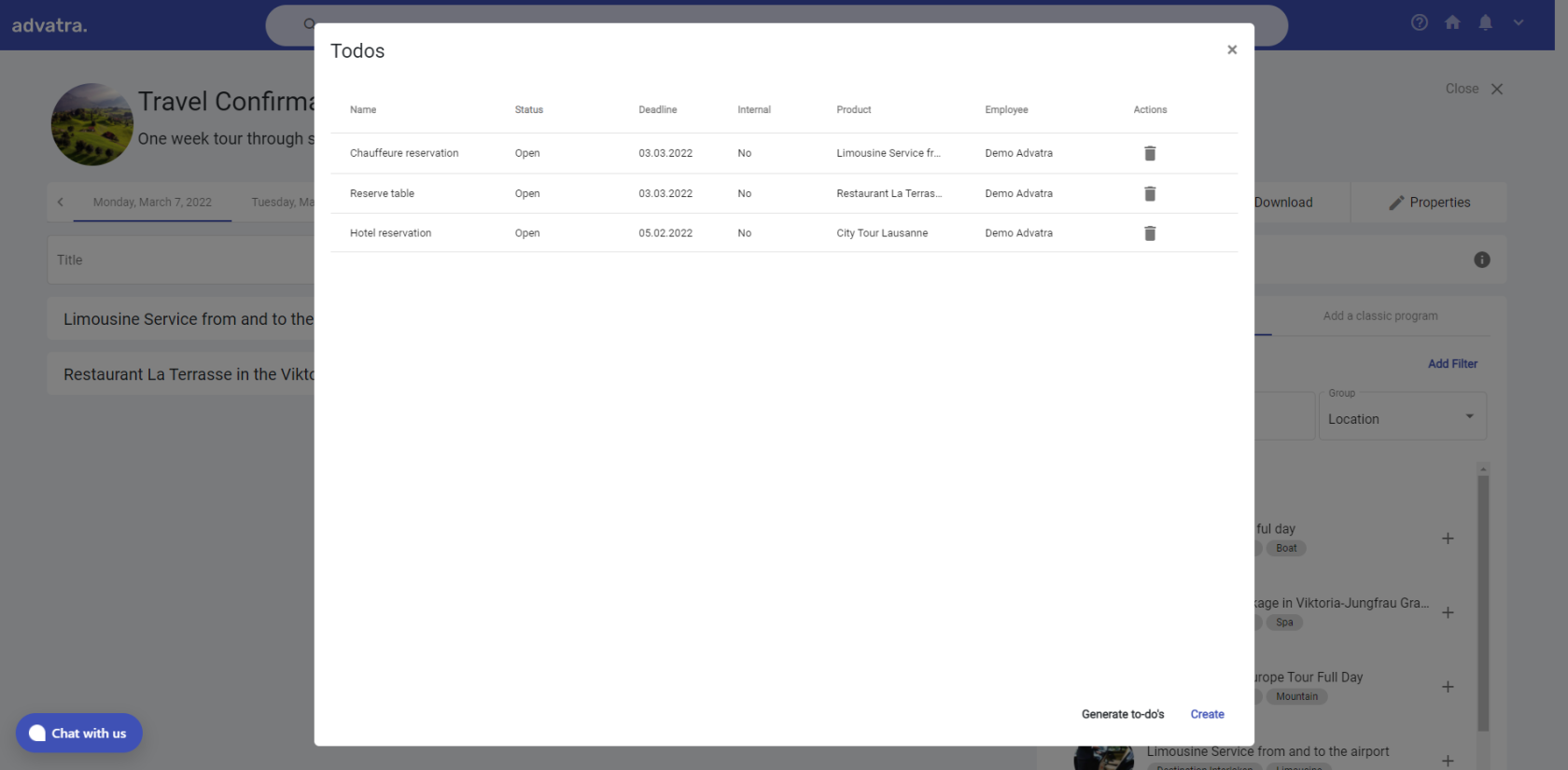](https://help.advatra.com/uploads/images/gallery/2022-06/image-1654694871881.png) Under generate to-dos, the to-do templates that are relevant for the trip can be selected and added to the document. To-dos are created from the to-do templates when they are added.Added to-dos are automatically assigned to the "Responsible employee operations". The Responsible employee operations can be defined in the dossier setting.
[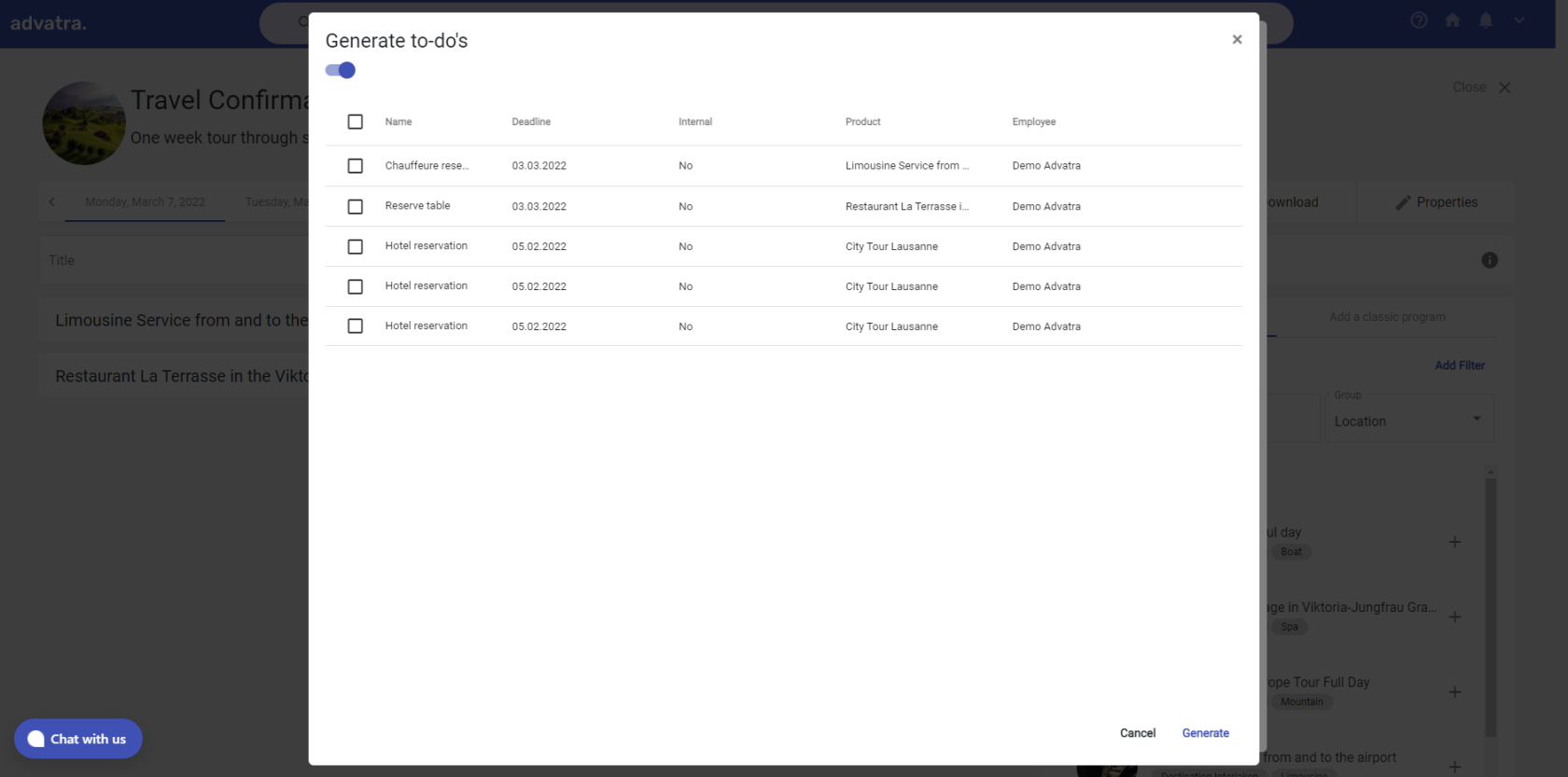](https://help.advatra.com/uploads/images/gallery/2022-06/image-1654694904329.png) ## How are to-dos processed? To-dos are automatically assigned to the "Responsible employee operations". He finds an overview of his to-dos on his dashboard. All to-dos and the current status can be viewed under Show all. A to-do can be sent directly by e-mail: For example, the to-do Reserve chauffeur is linked to the email address of the product template that offers the limousine service. (Product template = limousine service, attached mail address = contact person). To-dos can be dragged and dropped between the individual columns. # To-do return values Create return values: **Menu: Administration → Sales → Product templates → To-do templates** Use return values: **Dashboard → Show all to-dos → Drag to-do to "Closed" column** ## What Return values are information that is requested when the to-do is completed. For example, one has the to-do template "Reserve table". The return value for this can be "Reservation time" or "Table number". [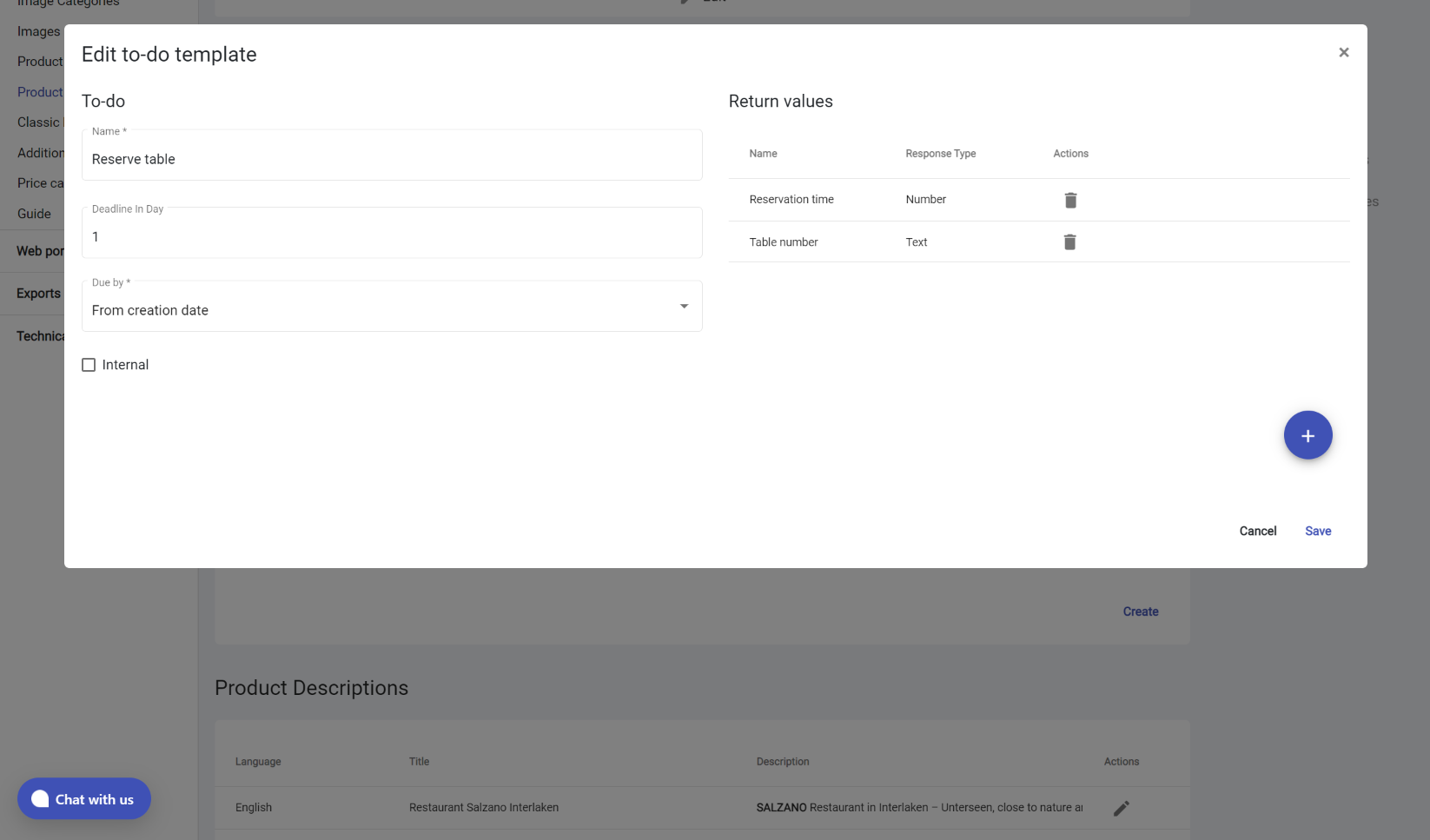](https://help.advatra.com/uploads/images/gallery/2022-06/image-1654695273313.png) ## Where are return values defined? Return values are generated in the product template when creating to-do templates. 1. Create your to-do template and save it. 2. A "Return values" area appears on the right 3. Click on the blue round "add button" and then double-click in the fields 1. Name: Name of the return value 2. Response type: Text, Number, Travel Guide (most of the time the return value is a text) 4. Click on the "Done" tick. ## How are return values queried? Return values are requested on the to-do board as soon as the to-do is dragged into the "Closed" column. The return values can be entered there and viewed again and again. [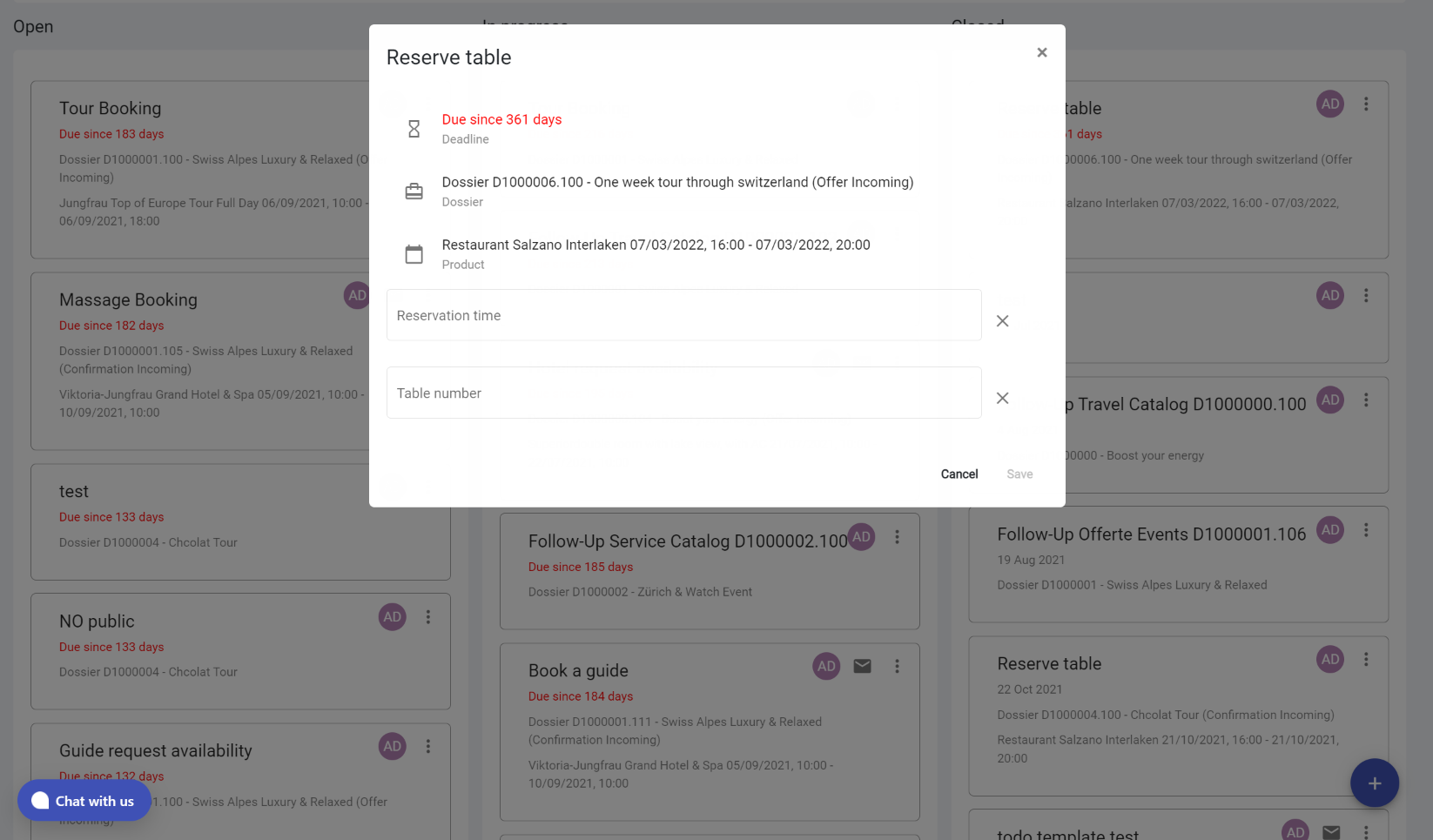](https://help.advatra.com/uploads/images/gallery/2022-06/image-1654695471532.png) # Examples ## Hotel (Schweizerhof Lucerne) [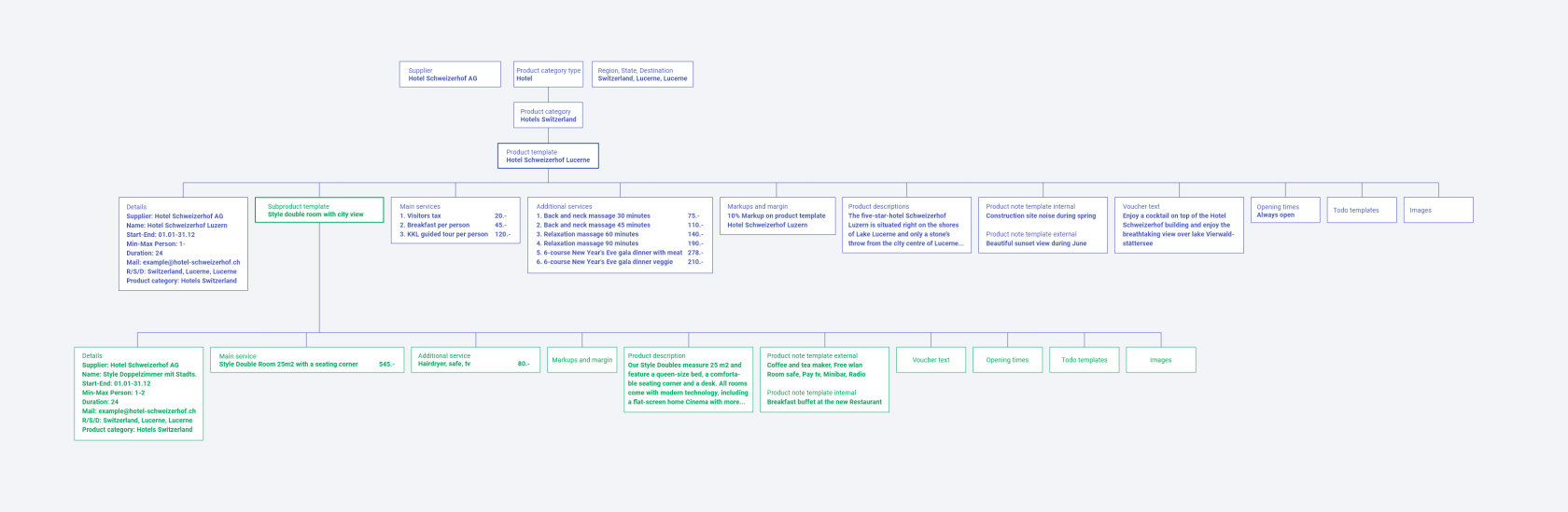](https://help.advatra.com/uploads/images/gallery/2022-06/image-1654693906107.png) ### Details Supplier: Hotel Schweizerhof AG Name: Hotel Schweizerhof Lucerne Start-End: 01.01-31.12 Min-Max Person: 1- Duration: 24 Mail: