# Sales
Everything you need during your daily business!
# Availabilities
**Menu: CRM → Availabilities**
## What
Availability of guides, drivers and tour guides can be entered and checked. Internal employees can enter their availability via a login. Other persons via an external link.
## Create and edit
How can I enter availabilities?
**Internal employees** with login can enter their availability directly in the menu under Availabilities.
Other persons, like **Guides**, can be entered under Administration → Sales → Guide. On the overview page of all guides, a link to the calendar with the availabilities can be sent via the email symbol.
# AXUS
**Menu: CRM → Company → Location → Dossier → Choose a doument (Offer, Confirmation)**
## What
AXUS is a software for travel planners and tour operators to create itineraries from a single source, quickly and with the appropriate CI look. AXUS is integrated with advatra. Please contact us for an AXUS integration.
Every itinerary sent from advatra to AXUS will count as a "itinerary credit" on AXUS.
You will see an overview over your credits [directly on AXUS.](https://axustravelapp.com/admin/subscription)
## Create and edit
Itinerary export with AXUS:
1. Select the document (Offer or Confirmation) you want to export.
2. Select "Document - AXUS export" under "More" on the right.
Before you create a new company, the following information must be stored in the system:
[Company type](https://help.advatra.com/books/knowledge-base/page/company-types "Company types") and [departments](https://help.advatra.com/books/knowledge-base/page/departments "Departments").
## Create a company
**First Name**: If it has an official company name, just leave the first field open and enter the company name in the next field.
**Name/Company**: If it does not have an official company name, just enter first name in field one and family name in field two.
## Create a location
You can create multiple locations for one company and manage it here. When you create dossiers (projects) and documents later, they will be subordinated to the locations.
## Create a contact
In the contact widget, you create contacts that belong to this company and location.
The best thing to do first is to create a travel agent with all the contact details.
# Contacts
**Menu: CRM → Contacts**
## What
Here you get an overview about all your contacts (customer and supplier) and the function to edit. Contacts are always attached to a company or supplier location.
## Create and edit
If you wish, we can also automate the data import if you have a large number of companies that you want to import.
[**Please contact us for this.**](https://www.advatra.com/contact)
1. Click on Companies or Suppliers
2. Click on the company that contact belongs to
3. Click on the location that contact belongs to
4. Create a new contact in the menu contacts.
See also [**sales process.**](https://help.advatra.com/books/getting-started/page/sales-process "Sales process")
## Create and edit
After you have created a company with a location and a dossier, you can create your first document in a dossier.
[Learn how to create your first offer/itinerary here.](https://help.advatra.com/books/your-first-trip/page/create-an-offeritinerary "Create an offer/itinerary")
The employee and the responsible employee can also be the same!
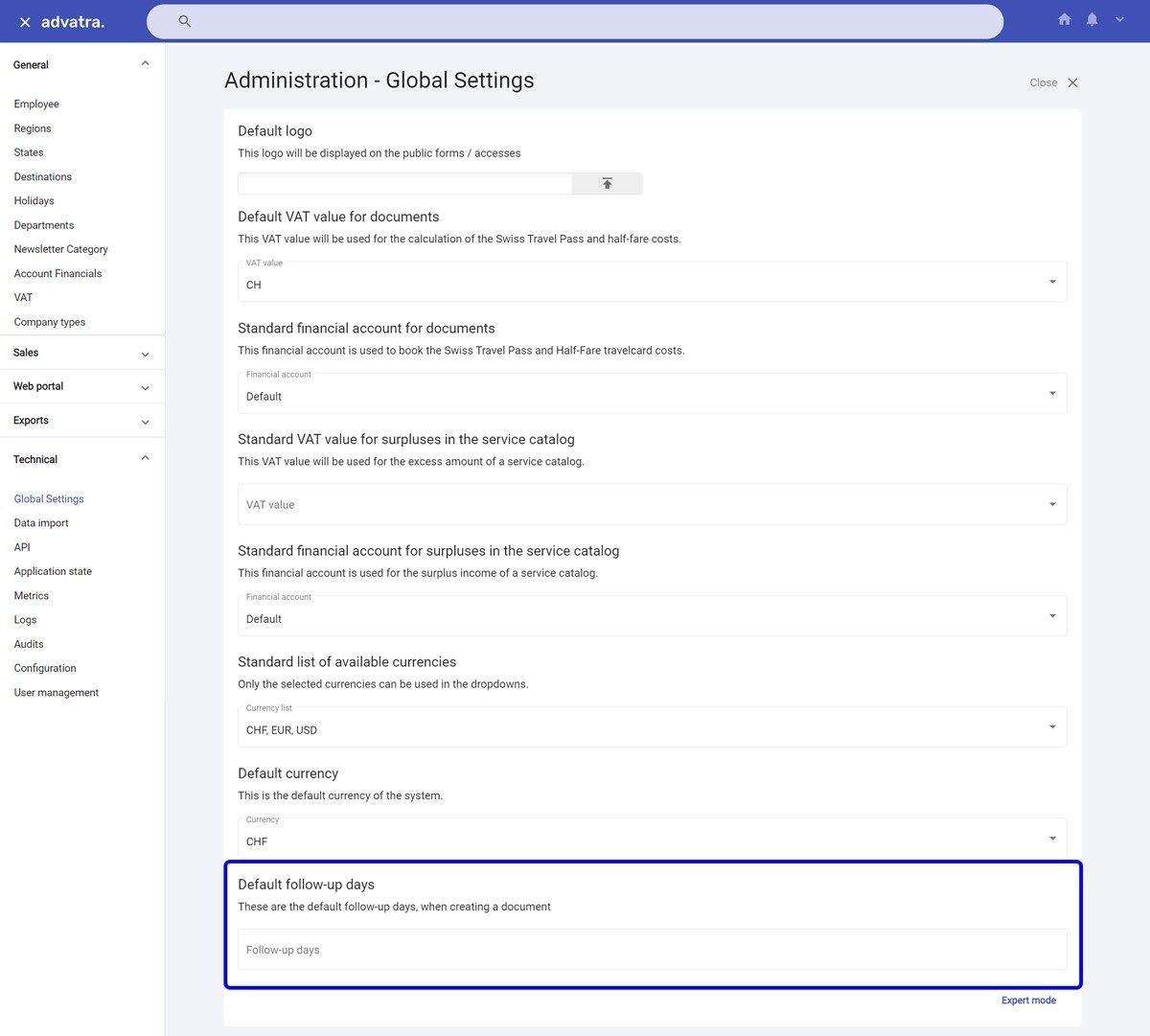
## Set automatic follow-up
**Menu: Administration → Administration → Technical → Global Settings**
[](https://help.advatra.com/uploads/images/gallery/2022-06/image-1654680425137.jpg)
# GDPR requests
**Menu: CRM → GDPR Requests**
## What
There is a function to black out all personal data. This is important because the EU carries out spot checks to ensure compliance with the GDPR - General Data Protection Regulation.
## Create
Create a new GDPR Request and choose between the two types:
**Delete**
All data of this contact will be deleted.
This **can not** be undone!
**Excerpt**
Only an excerpt of all connected data that is linked to this contact in advatra. You can export this excerpt with the "Print as PDF" function.
# Marketing codes and sales activities
**Menu: CRM → Marketing codes and sales activities**
## What
Marketing codes only relate to sales. A marketing code can be entered for any event, product or service. This can be linked to a sales activity. Contacts are attached to the sales activities.
## How are sales activities measured?
1. Add contacts to a company or supplier.
2. Create a marketing code for a specific event. (e.g. Las Vegas trade show)
3. Create a sales activity for each contact and link it to the marketing code. (e.g. 10 customers are at the Las Vegas show, each customer can be linked to a Sales Activity and this in turn can be linked to the Marketing Code).
# Suppliers
**Menu: CRM → Suppliers**
## What
Suppliers are service providers for your products. A [product ](https://help.advatra.com/books/knowledge-base/chapter/products "Products")(product template and subproduct) can be assigned to only one supplier, but each supplier can be assigned to an unlimited number of products.
Note: when you create product templates:
- If you create a main product with a supplier, this supplier will automatically be used for the subproduct as well.
- If you create a main product without a supplier, you can assign a separate supplier to each subproduct.
- If you delete a supplier on the main product, the deleted supplier will be added to the subproducts (which are not assigned to a supplier).