Every itinerary sent from advatra to AXUS will count as a "itinerary credit" on AXUS. You will see an overview over your credits [directly on AXUS.](https://axustravelapp.com/admin/subscription)
## Create and edit Itinerary export with AXUS:Before you create a new company, the following information must be stored in the system: [Company type](https://help.advatra.com/books/knowledge-base/page/company-types "Company types") and [departments](https://help.advatra.com/books/knowledge-base/page/departments "Departments").
## Create a company **First Name**: If it has an official company name, just leave the first field open and enter the company name in the next field. **Name/Company**: If it does not have an official company name, just enter first name in field one and family name in field two. ## Create a location You can create multiple locations for one company and manage it here. When you create dossiers (projects) and documents later, they will be subordinated to the locations. ## Create a contact In the contact widget, you create contacts that belong to this company and location. The best thing to do first is to create a travel agent with all the contact details. # Contacts **Menu: CRM → Contacts** ## What Here you get an overview about all your contacts (customer and supplier) and the function to edit. Contacts are always attached to a company or supplier location. ## Create and editIf you wish, we can also automate the data import if you have a large number of companies that you want to import. [**Please contact us for this.**](https://www.advatra.com/contact)
See also [**sales process.**](https://help.advatra.com/books/getting-started/page/sales-process "Sales process")
## Create and editThe employee and the responsible employee can also be the same!
## Set automatic follow-up **Menu: Administration → Administration → Technical → Global Settings** [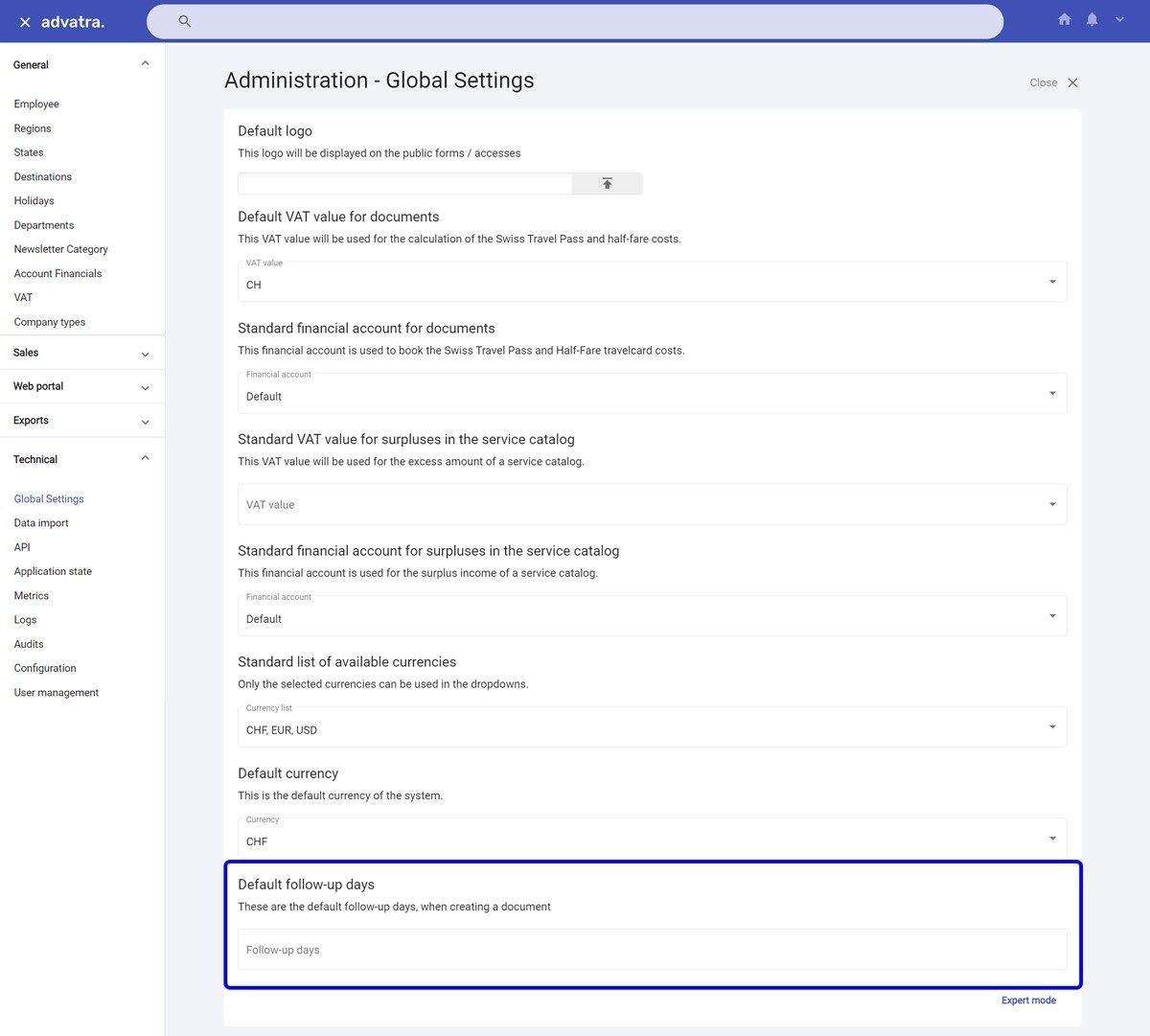](https://help.advatra.com/uploads/images/gallery/2022-06/image-1654680425137.jpg) # GDPR requests **Menu: CRM → GDPR Requests** ## What There is a function to black out all personal data. This is important because the EU carries out spot checks to ensure compliance with the GDPR - General Data Protection Regulation. ## Create Create a new GDPR Request and choose between the two types: **Delete** All data of this contact will be deleted.This **can not** be undone!
**Excerpt** Only an excerpt of all connected data that is linked to this contact in advatra. You can export this excerpt with the "Print as PDF" function. # Marketing codes and sales activities **Menu: CRM → Marketing codes and sales activities** ## What Marketing codes only relate to sales. A marketing code can be entered for any event, product or service. This can be linked to a sales activity. Contacts are attached to the sales activities. ## How are sales activities measured? 1. Add contacts to a company or supplier. 2. Create a marketing code for a specific event. (e.g. Las Vegas trade show) 3. Create a sales activity for each contact and link it to the marketing code. (e.g. 10 customers are at the Las Vegas show, each customer can be linked to a Sales Activity and this in turn can be linked to the Marketing Code). # Suppliers **Menu: CRM → Suppliers** ## What Suppliers are service providers for your products. A [product ](https://help.advatra.com/books/knowledge-base/chapter/products "Products")(product template and subproduct) can be assigned to only one supplier, but each supplier can be assigned to an unlimited number of products. Note: when you create product templates:If your classic program lasts longer than your trip, the overdue days are deleted.
# Company types **Menu: General → Company types** ## What Individual company types can be entered and later assigned when creating new companies (also suppliers). Company types are helpful for creating reports. You can group your customers for example by "Virtuoso" and see how much turnover, margin, etc. you have generated with these customers. # Departments **Menu: General → Departments** ## What If your organization has different departments, they can be defined here. For each department, you have the option of working with cost centre numbers that are linked to the accounting system. This is useful if you have several departments, but they bill differently. When you create dossiers later, you will find a mandatory field where you have to assign a predefined department. [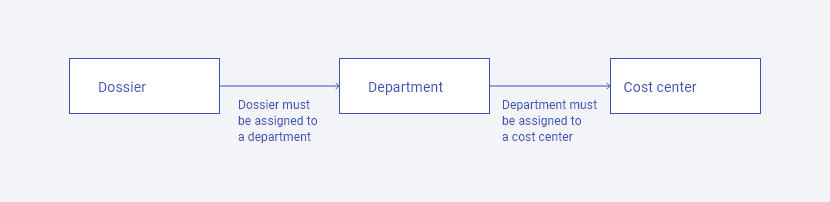](https://help.advatra.com/uploads/images/gallery/2022-06/image-1654679868255.png) # Document notes **Menu: Exports → Document notes** ## What Document notes are textual contents that can be attached by creating a new document in a dossier, for example bank details on the invoice. ## Where to use? Company → Location → Dossier → Documents Create a new document with the same type (Offer Incoming and Confirmation Incoming) as the document note and then the note is automatically attached. # Employees **Menu: General → Employee** ## What Here you can register all your employees and assign them their appropriate roles with the corresponding authorizations. You can only create as many users as you have licences.You can always contact us, if you need to upgrade your licence quota. **[Contact us.](https://www.advatra.com/contact)**
Staff members can be deactivated. Deactivated employees no longer appear in any selection list, their user account is set to inactive, and they are not counted towards the licence quota. If the status of an employee is changed from deactivated to activated, the licence limit must be observed. ## Create and edit After the creation of an employee, they will receive an invitation email to advatra and have to set a password. This email has a validity of 24 hours. [Read more here.](https://help.advatra.com/books/getting-started/page/create-your-account "Create your account") To simplify access and setup of the first steps, we recommend giving every employee the role of an administrator. Later, you can always structure the roles the way you need it. # File templates **Menu: Exports → File templates** ## What Templates can be created for itineraries, invoices or vouchers. Each template is assigned to a type: Document, Trip, Receipt, Calculation. Invoice, Prepayment → Document Itinerary → Travel Itinerary with offer or confirmation → Travel Voucher → Voucher**DOCX Templates** To update the templates, we recomment to download our example in the system. [Learn more about the DOCX templates](https://help.advatra.com/books/technical-information/chapter/export-templates-docx "Export Templates (DOCX)")
We can assist you with creating templates with our [advisory packages](https://www.advatra.com/pricing/#_advisory-packages). [**Please contact us for this.**](https://www.advatra.com/contact) # Forms **Menu: Web portal → Forms** ## What A form can be any type of feedback that can be filled out by external people and returned to the form creator. For example, travel feedback. There are two different types of forms: Dossier forms and surveys. Surveys are public surveys and can be viewed under the main menu item Web portal. There, a link can be copied and sent to external persons. Dossier forms are forms that are always attached to a dossier. The responses of a dossier form is visible directly on the dossier view. ## Form types **Survey** Are public surveys. These can be sent to external persons with a link under Web portal → Survey. **Dossier** A form can be attached to a dossier. This can be, for example, a billing reminder for an agency or a guide. DMC creates a form and sends it to the agency or guide as a payment reminder. The form then states that the agency or guide should provide their contact and account details so that DMC can pay. ## Form statuses **No status** The admin creates a new form template. **Open** An employee selects the form template with the number of expected responses. **Filled out** All expected persons have responded to the form. **Approved** The employee/dossier manager has confirmed by clicking on the tick that the form has been completed by all and thus confirms the form. **Processed** The accounting department clicks on the tick to confirm that, for example, the commission has been paid in. ## Create a from **Administration → Web portal → Forms** The administrator creates form templates here, which the employees can use. **Company → Company → Location → Dossier** In the Dossier Forms section, they can select a template from a form created by the administrator. In doing so, he specifies how many responses he expects. As soon as everyone has filled out the form, the status changes to Filled out. The employee can then approve the form for the accounting department. **Menu → Administration → Dossier forms** The accounting department has an overview of all dossiers here. **Menu → Web portal → Surveys** Overview over all survey forms and their response. # Holidays **Menu: General → Holidays** ## What The general holidays are entered here. If you work with product templates and subproduct templates, you will be informed that the products are not/only limited available on the holidays you have entered.Recurrently refers to all dates that occur on the same date each year. For example, 1 January. Whereas Easter is not recurrently, because Easter is always on a different date.
# Image categories **Menu: Sales → Image categories** ## What This is important for the search function for images. Here, individual image categories can be entered and later assigned when uploading new images. This is helpful for the search/filter function for images. # Images **Menu: Sales → Images** ## WhatBefore adding images to the gallery, you must define categories under **Image Categories** so that the images can be assigned to these categories and can be found more easily when compiling products.
This is your individual image database. You can upload any image of any size, the system will automatically format it. Just give the image a name and select one of your predefined categories and destinations. Image description is optionally possible. # Locations **Menu: General → Locations** ## What Locations are important for the later search function for [products](https://help.advatra.com/books/knowledge-base/chapter/products "Products") and refines the search by geographical characteristics. The Location component is summarized in a tile with 3 different sizes (Small, Medium, Large). However, you are free on the way you want to use these 3 sizes, which restricts the search from large to small.It is important that the structure of the three levels is always thought of from the smallest unit.
**Large**: e.g. Country = USA **Medium**: e.g. Federal States = California, Florida, Texas, etc. **Small**: e.g. Cities = Los Angeles, Miami, Dallas, etc. Again, these are just examples, you can use these 3 characteristics the way it's best for your individual needs. Therefore, it's important to think first about how you want to narrow down the product search for your markets. ## Create and edit 1. Create large locations 2. Create medium locations and assign them to a large location 3. Create small locations and assign them to a medium location # Microsoft 365 - E-Mail Sync **Menu: Technical → Microsoft 365 ** ## What Advatra can connect with your Microsoft 365 tenant. With this integration, advatra will automatically collect the E-Mails of your employees and link it to the corresponding dossiers. You will have to add the dossier number to the subject of your e-mails, and you're done! ## Activate To connect to Microsoft 365: 1. Click on the "**Register**" button 2. Login with your company account of Microsoft 365 3. You will see a prompt to allow advatra access to these properties: 1. Read mail in all mailboxes 2. Sign in and read user profile 4. Click on "**Accept**" 5. Now your e-mails are synced with advatra! # Text templates **Menu: Export → Text templates** ## What Text templates are individually created texts that can then be manually copied into a document as desired. This means that they do not always have to be rewritten. ## Create and edit How to create text templates and where to use them? Create a text template and add the text you want to reuse. Variables can also be added. You will have to enter the value vor the variables when adding the template to a text editor. [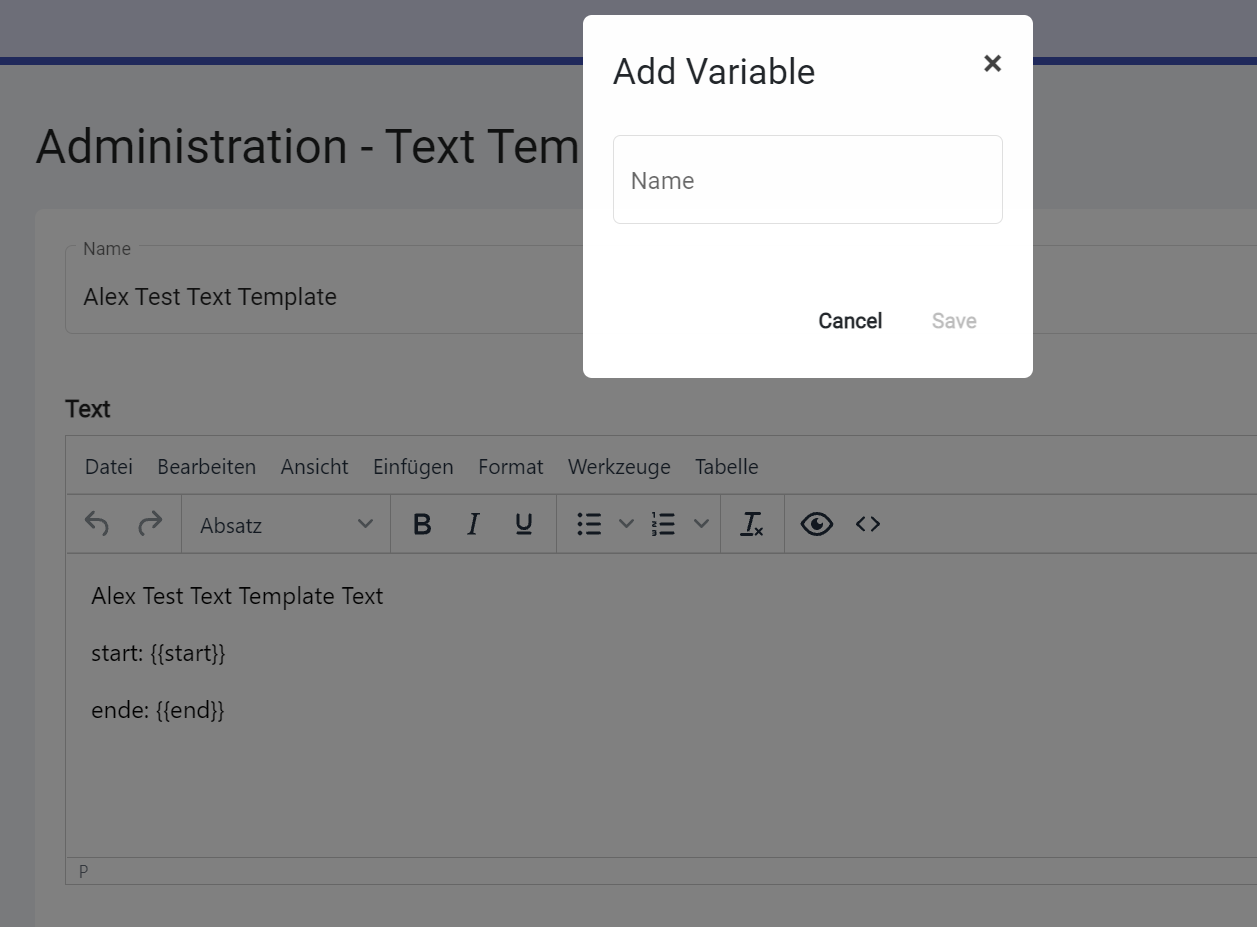](https://help.advatra.com/uploads/images/gallery/2022-06/image-1654694422991.png) The text templates can be used in any editor in the advatra system: [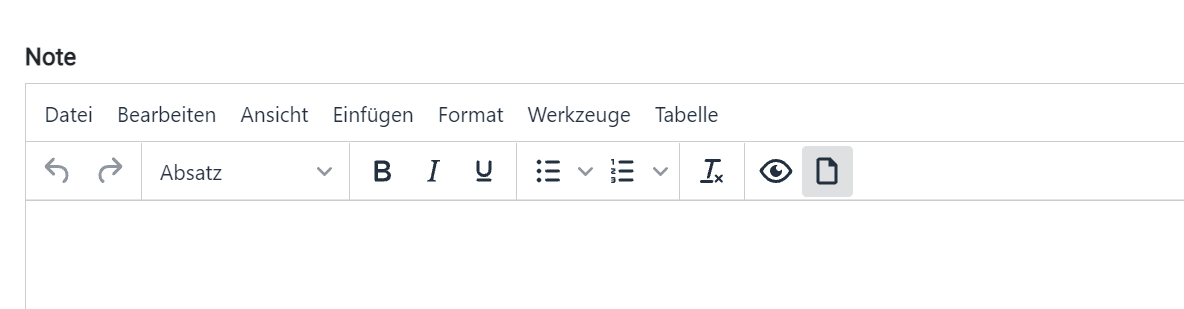](https://help.advatra.com/uploads/images/gallery/2022-06/image-1654694455491.png) # VAT **Menu: General → VAT** ## What If your organization works with different VAT rates, these can be defined here. A 0 percent VAT must be set up. This VAT is used for surcharges that are not VAT-relevant. When you later create products, offers and more or simply manage prices, you will find a mandatory field where you must assign the prices to a predefined VAT. So the ID is predefined by the accounting system. As we can link advatra to the accounting system, in this case the booking is automated if the ID is entered correctly in the VAT. # Pricing With advatra it is possible to define and modify pricing structures for individual products and sets of products with just one click. It is also possible to play with purchase and sales price as well as markups, margins, commissions and VAT rates. This gives you the opportunity to structure your products and prices as individual and detailed as you like and as a result to react on big price changes in a short time. # Pricing definitions ## General terms #### Purchase price The purchase price is the price you pay for a service when you buy it from the supplier. The purchase price is invoiced by the supplier. #### Markup The markup refers to a percentage that is added to the purchase price of an item to arrive at a sales price. For example, if you have a markup of 33% on your purchase price, it means that you sold your product 33% above your purchase price. If you want to determine your markup, you can ask yourself the following question: What markup must be added to the purchase price to make a profit? #### Margin Margin refers to the percentage of the selling price that is considered profit. If they have a margin of 33%, it means they made 33% profit on the sale. So margin is the percentage of profit from the selling price. If you want to determine your margin, you can start from the question, how much profit do you want to have in the end? #### Selling price The selling price is the price you invoice to your customer. It consists of the purchase price and the added markup. #### Profit Profit is the difference between the selling price and the purchase price. ## Detailed terms #### Commission If you receive a commission, for example from a hotel, advatra can deduct this amount from the purchase price. So if you add a commission, your profit will be higher. #### Effective PP (purchase price) The effective purchase price is the price that your supplier invoiced you at the end. #### PP (Purchase price) The purchase price is the price you pay for a service when you buy it from the supplier. The purchase price is invoiced by the supplier. --- #### Original SP (Selling price) The original selling price is the price you invoice to your customer. It consists of the purchase price and the added markup. #### Total SP (Selling price) The total selling price consists of the original selling price plus the surcharge/discount. --- #### Original profit The original profit is the difference between the selling price and the purchase price. #### Total profit The total profit consists of the original profit plus the surcharge/discount. --- #### Original markup The original markup refers to a percentage that is added to the purchase price of an item to arrive at a selling price. For example, if you have a markup of 33% on your purchase price, it means that you sold your product 33% above your purchase price. #### Original margin The original margin refers to the percentage of the selling price that is considered profit. For example, if you have a margin of 33%, it means they made 33% profit on the sale. So, margin is the percentage of profit from the selling price. #### Total margin The total margin consists of the original margin plus the surcharge/discount. #### Total markup The total markup consists of the original markup plus the surcharge/discount. --- #### Surcharge/discount The surcharge/discount will be added (or subtracted) on top of the selling price. #### Net The total selling price exclusive value added taxes. # Markup and margin **Markup** The markup refers to a percentage that is added to the purchase price of an item to arrive at a sales price. For example, if you have a markup of 33% on your purchase price, it means that you sold your product 33% above your purchase price. If you want to determine your markup, you can ask yourself the following question: What markup must be added to the purchase price to make a profit? **Margin** Margin refers to the percentage of the selling price that is considered profit. If they have a margin of 33%, it means they made 33% profit on the sale. So margin is the percentage of profit from the selling price. If you want to determine your margin, you can start from the question, how much profit do you want to have in the end? ## On which level can markups and margins be set? 1. **Product category type** *(Hotel, Transfer, Country)* 2. **Product category** *(your own categories, which are subordinated to the product category types: for example restaurants, lakes, mountains)* 3. **Supplier** *(Hotel Schweizerhof AG)* 4. **Product template** *(Hotel Schweizerhof)* 5. **Subproduct template** *(Double room with lake view)* ## What influence does the hierarchy of levels has on prices? Markups and margins are defined in a specific hierarchy you can see below. If you change the markup or margin on one level *(product category)*, you can update all prices attached to this level and the levels below *(supplier, product template, subproduct template)* at once. Except the levels in the hierarchy below the one you want to change, have set their own markup and margin. To do this, write the new markup or margin directly in the relevant line and update the line. Attention: Price updates cannot be undone. More on this under [Mass Price Updates](https://help.advatra.com/books/knowledge-base/page/mass-price-updates "Mass price updates"). [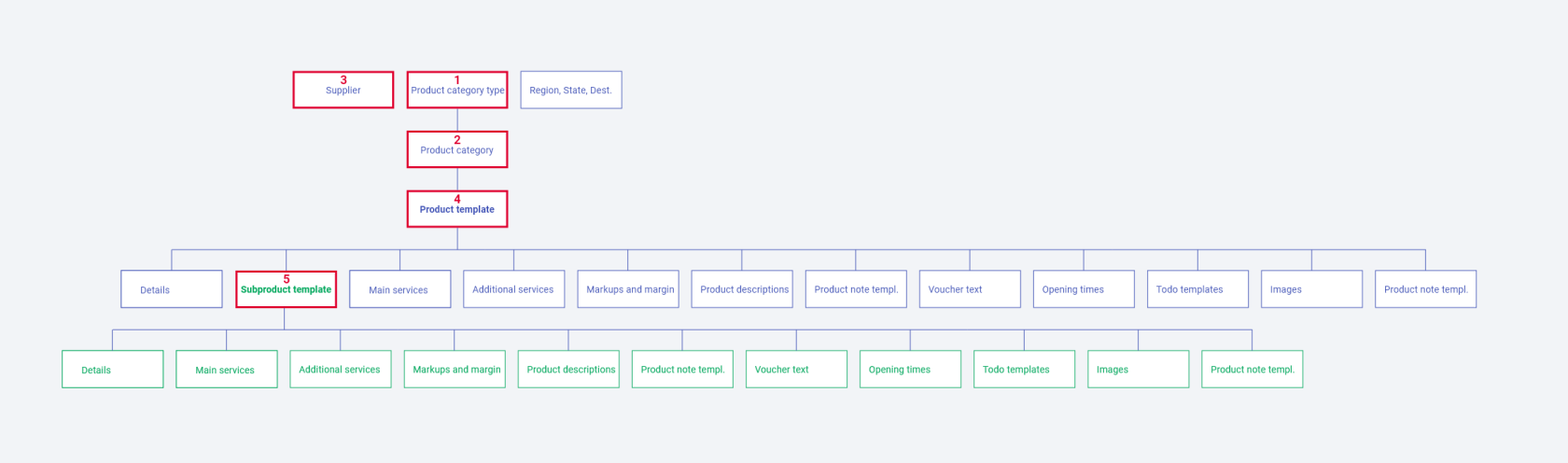](https://help.advatra.com/uploads/images/gallery/2022-06/image-1654690863266.png) ## Are there any required steps to be able to set markups and margins?To be able to set markups and margins, it is important that product categories, product templates, subproduct templates and suppliers are already added and linked to each other during the first setup steps. If these levels have not been added yet, please add them first.
1. CRM → Supplier 1. [Add supplier](https://help.advatra.com/books/knowledge-base/page/suppliers "Suppliers") 2. Administration → Administration → Sales → Product categoris 1. Add [product categories](https://help.advatra.com/books/knowledge-base/page/product-categories "Product categories") 3. Administration → Administration → Sales → Product templates 1. Add [product templates](https://help.advatra.com/books/knowledge-base/page/product-templates "Product templates") (set prices and link suppliers) 2. Set markups or margin for product templates or subproduct templates 4. Administration → Sales → Price calculation 5. 1. Set markups and margins for [product category type](https://help.advatra.com/books/knowledge-base/page/product-category-types "Product category types"), [product category](https://help.advatra.com/books/knowledge-base/page/product-categories "Product categories") and [supplier](https://help.advatra.com/books/knowledge-base/page/suppliers "Suppliers") 2. Update your prices and get a preview of the updated prices ## Where are markups and margins set? Markups and margins are set in two different places in the system. Levels are split between these two places. **Administration → Sales → Price calculation** - Product category type - Product category - Supplier [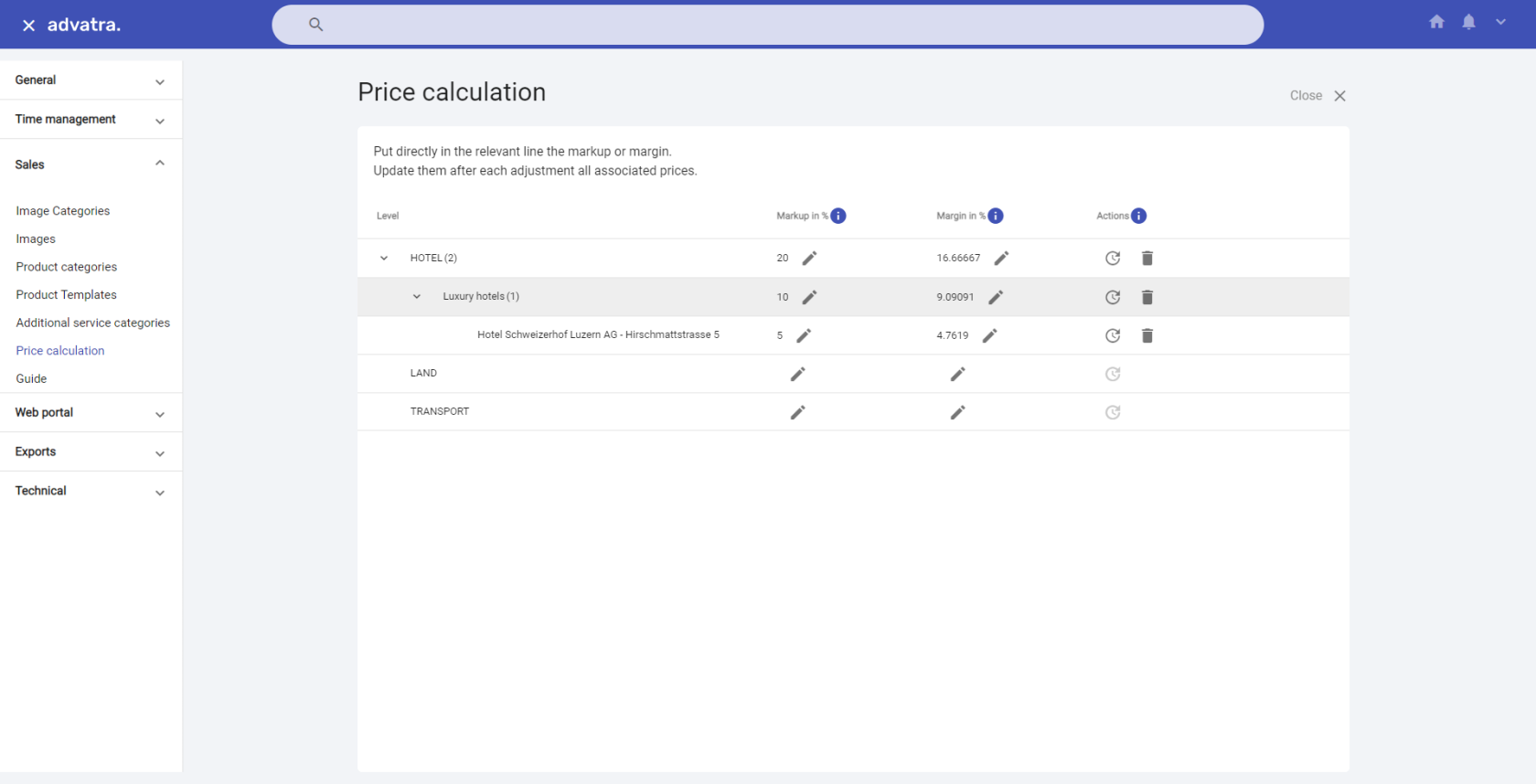](https://help.advatra.com/uploads/images/gallery/2022-06/image-1654690990987.png) **Administration → Sales → Product templates** - Product templates - Subproduct templates [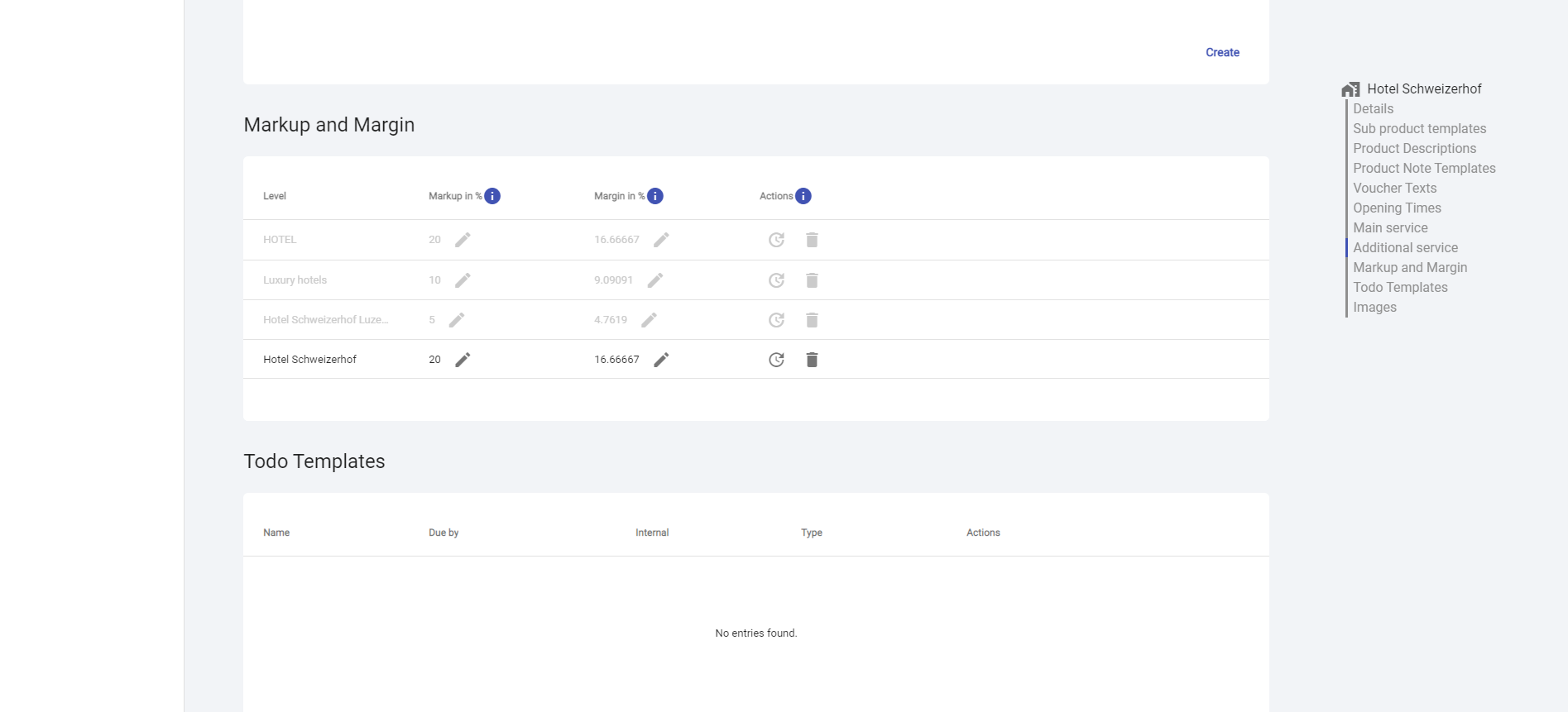](https://help.advatra.com/uploads/images/gallery/2022-06/image-1654691049784.png) # Mass price updates **Menu: Administration → Administration → Sales → Price calculation**If you don't see the **Price calculation** menu item, make sure your current user has the Role "Administrator" assigned.
Using set markups and margins, you can perform mass price updates. Price updates can be calculated from either the purchase price or the sales price. Price updates always take into account the lowest level in the markup and margin hierarchy: 1. **Product category type** *(Hotel, Transfer, Country)* 2. **Product category** *(your own categories, which are subordinated to the product category types: for example restaurants, lakes, mountains)* 3. **Supplier** *(Hotel Schweizerhof AG)* 4. **Product template** *(Hotel Schweizerhof)* 5. **Subproduct template** *(Double room with lake view)* ## What influence does the hierarchy of levels has on prices? Markups and margins are defined in a specific hierarchy you can see above. If you change the markup or margin on one level *(product category)*, you can update all prices attached to this level and the levels below *(supplier, product template, subproduct template)* at once. Except, the levels below the level you want to update have their own markups and margins. [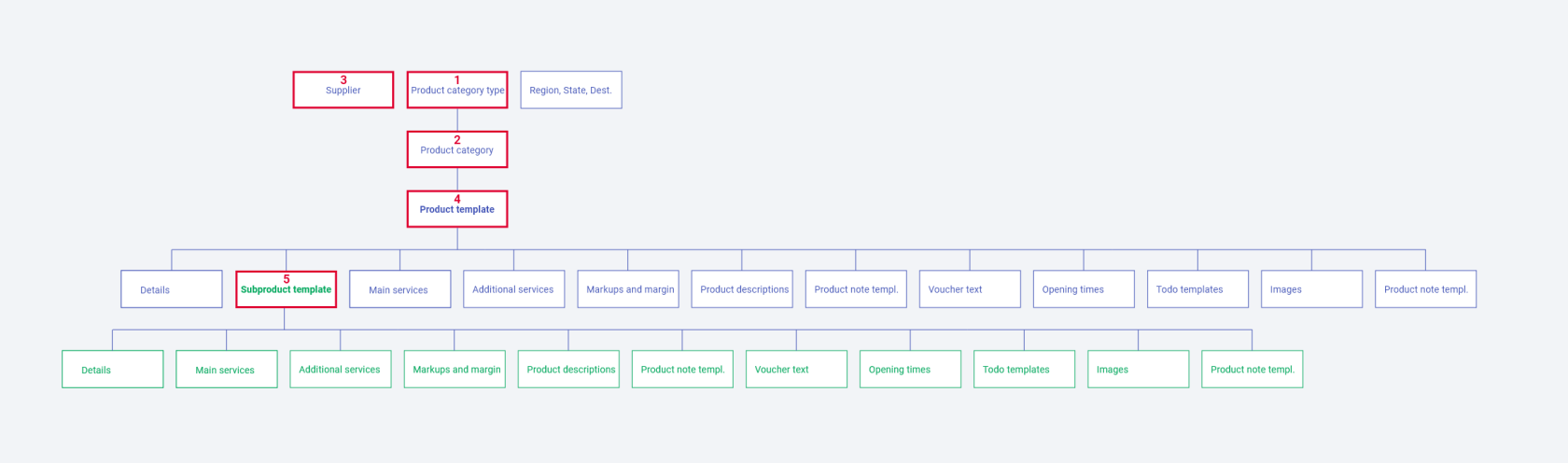](https://help.advatra.com/uploads/images/gallery/2022-06/image-1654691161425.png) For example, if you have set a markup of 20% on a supplier, but a product template with a markup of 15% is attached to this supplier, all prices will be updated with a markup of 20%, except for the first price on the product template. This price will be updated with a markup of 15%. ## Update prices To do this, write the new markup or margin directly in the relevant line and update the line by using the update symbol on the right side of the line. Only the repetitive prices will be updates. The unique prices are not affected by this change.**Attention** Price updates cannot be undone.
When you update the **purchase price**, a new purchase price is calculated from the sales price downwards. If you update the **sales price**, a new sales price will be calculated from the purchase price upwards. In the next step, you will see an overview of the new prices. The updated prices are displayed in blue. [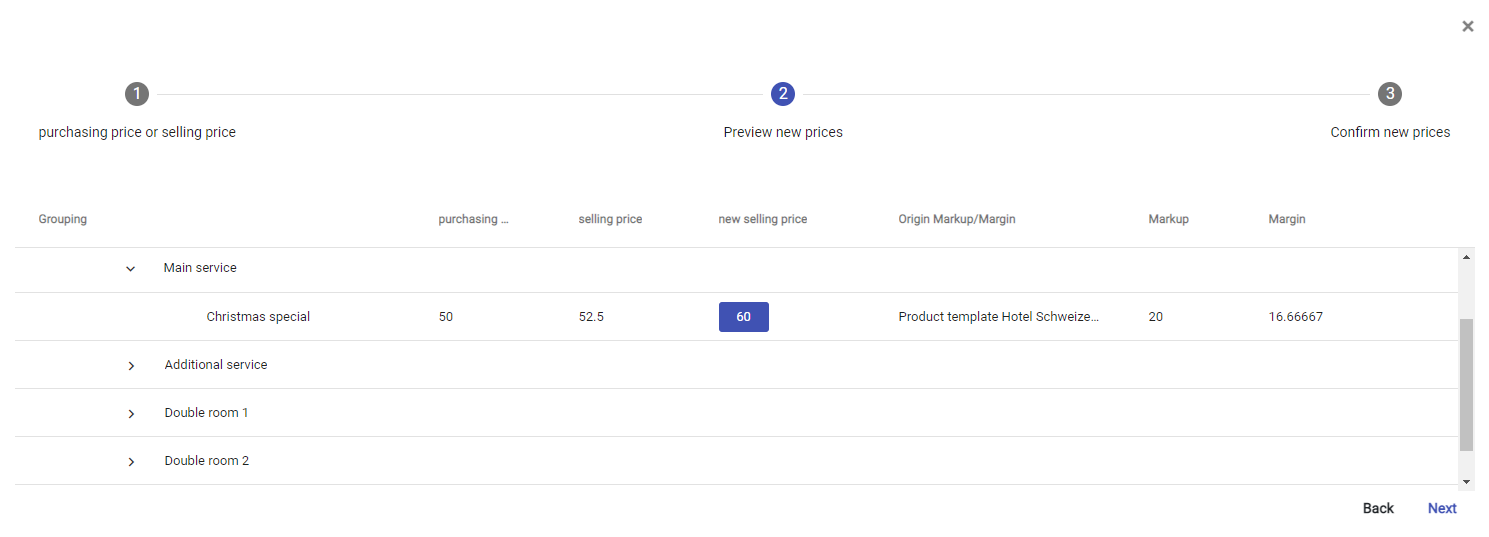](https://help.advatra.com/uploads/images/gallery/2022-06/image-1654691301106.png) # Price calculator **Menu: Sales → Product templates/Subproduct templates → Main service/Additional service**If you don't see the price calculator, make sure your current user has the Role "Price calculation user" assigned.
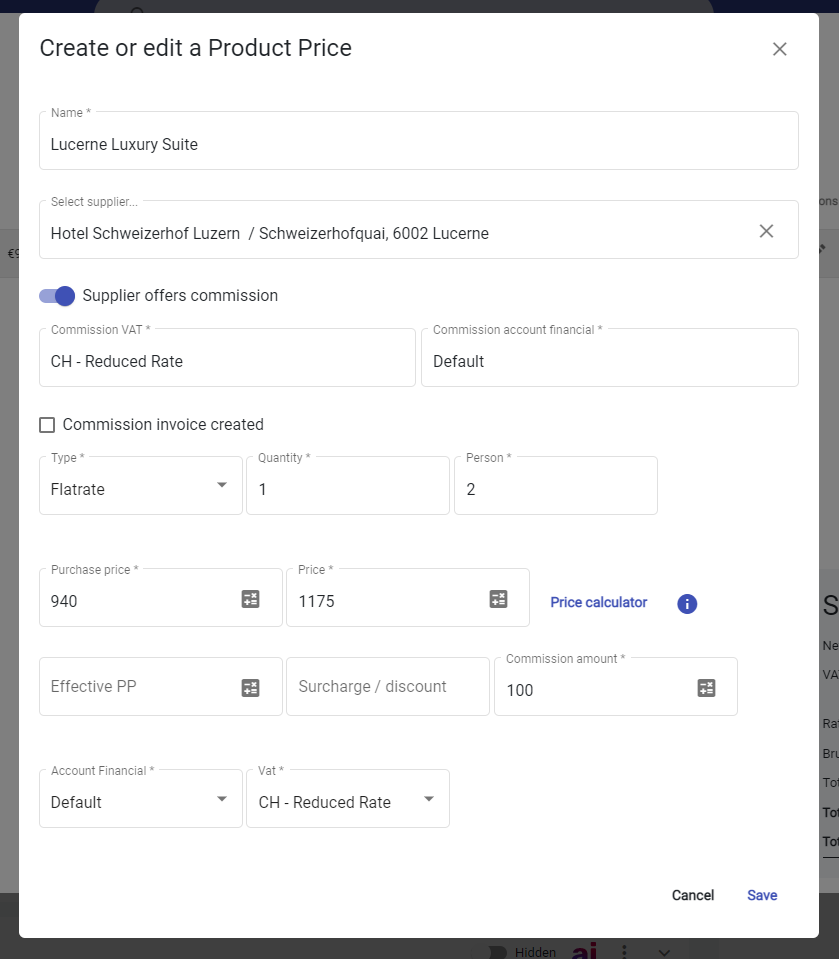
With the price calculator, you can quickly and easily calculate both your markup and margin, defining the optimal purchase and/or sales price. The price calculator can only be used as soon as a markup or margin has been set on at least one level. In the table below the calculator, you can see the markups and margins already defined. The selected markup or margin is automatically taken over in the calculator. You can manually adjust the values in the calculator. [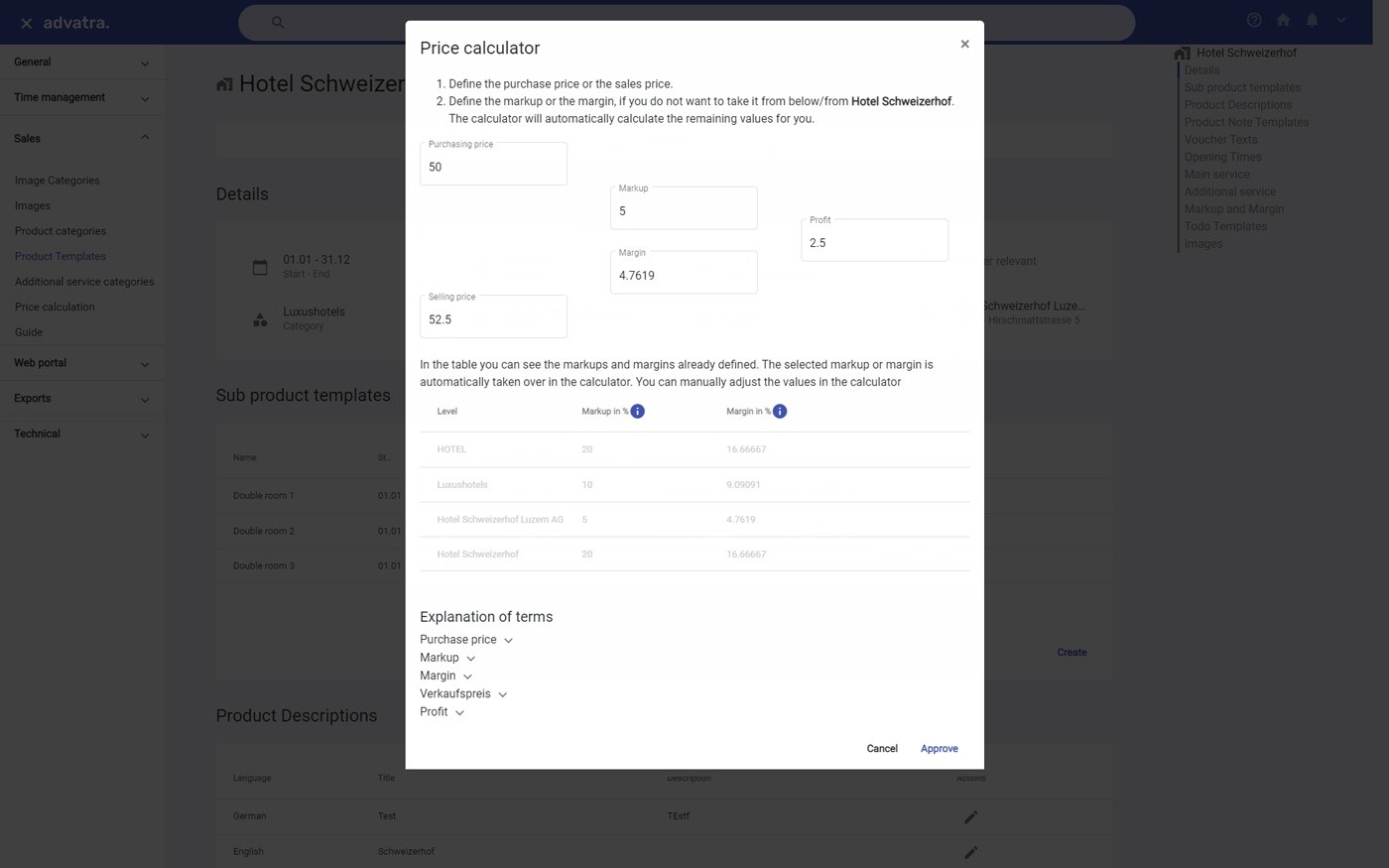](https://help.advatra.com/uploads/images/gallery/2022-06/image-1654691389788.jpg) # Price types **Menu: Sales → Product templates/Subproduct templates → Main service/Additional service** ## What are the different types of prices? For a main or additional service, a unique or a repetitive price can be defined. Only one of the two price options can be entered for each service. Repetitive prices repeat annually. Unique prices are limited to a definite time frame. #### Repetitive prices Repetitive prices repeat annually, so you can't assign a year to them. With repetitive prices, you can define different price ranks within a year. **Example** Hotel summer price 01/05 - 30/09 = 200€ Hotel winter price 01/10 - 30/04 = 150€ Since no year is assigned to the price, the hotel has the same summer and winter price every year in the future. #### Unique prices Unique prices are limited to a definitive time frame. Therefore, they are only valid during this period. Several unique prices can be defined for one service, but they must not overlap. **Example** Hotel price 01/05/2023 - 30/09/2023 = 300€ Hotel price 01/10/2023 - 30/04/2024 = 250€ Hotel price 01/05/2024 - 30/09/2024 = 400€ Hotel price 01/10/2024 - 30/04/2025 = 350€ Hotel price 01/05/2025 - 30/09/2025 = 500€ Hotel price 01/10/2025 - 30/04/2026 = 450€ ## Where can I create prices? Repetitive and unique prices can be created in the product template under main and additional services. [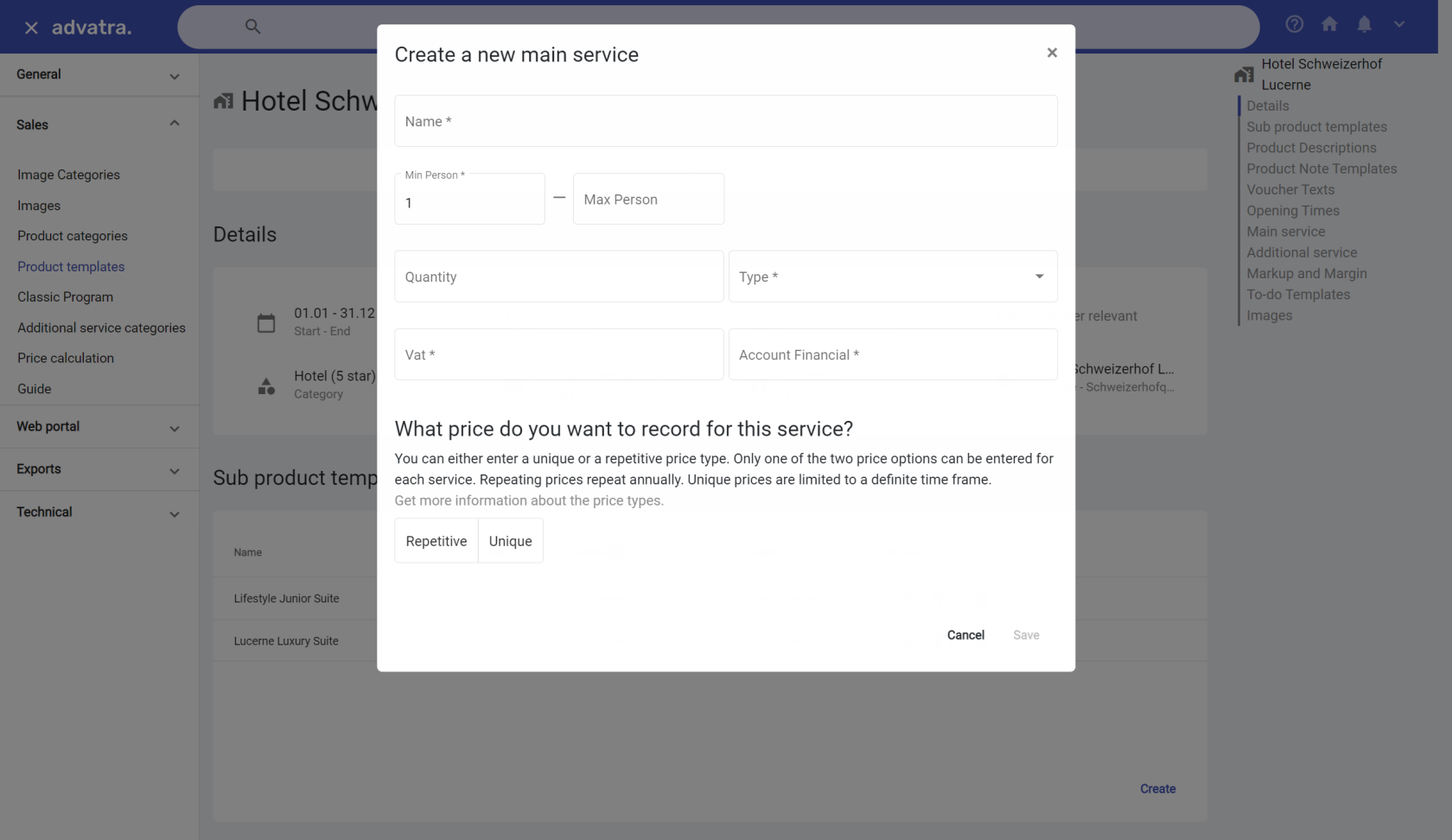](https://help.advatra.com/uploads/images/gallery/2022-08/image-1660204910965.png) You can see the created price types under main and additional services. [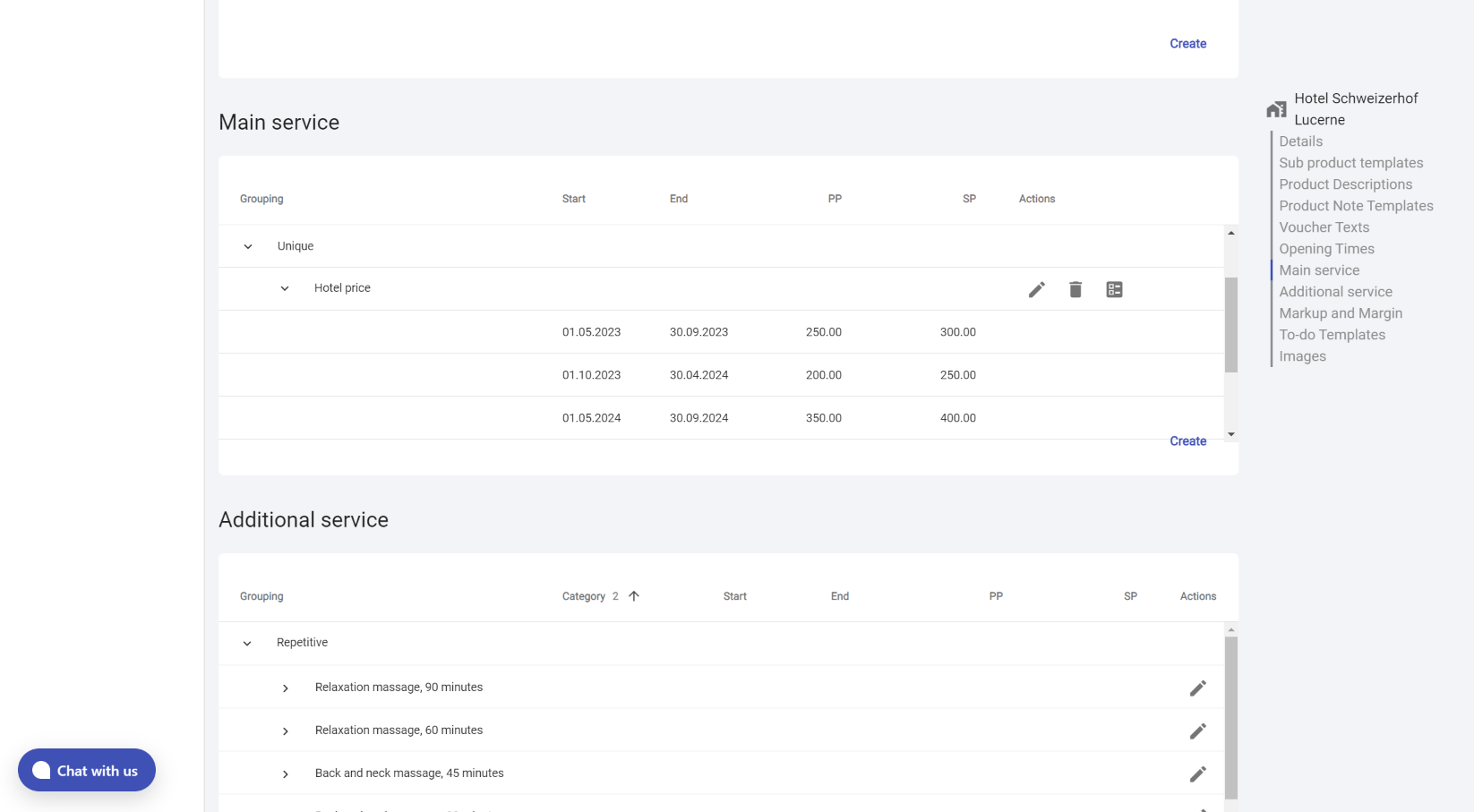](https://help.advatra.com/uploads/images/gallery/2022-08/image-1660208283292.png) ## How can I add price types to a document? #### Repetitive prices Repetitive prices are displayed as before. As before, these already selected prices are also displayed, for which the start and end dates as well as the minimum and maximum number of people match the trip. #### Unique prices A trip from 08/05/2023 - 15/05/2023 will be created. 1. During this period, unique prices exist: In this case, the appropriate hotel price is selected based on start and end dates and min. max person. [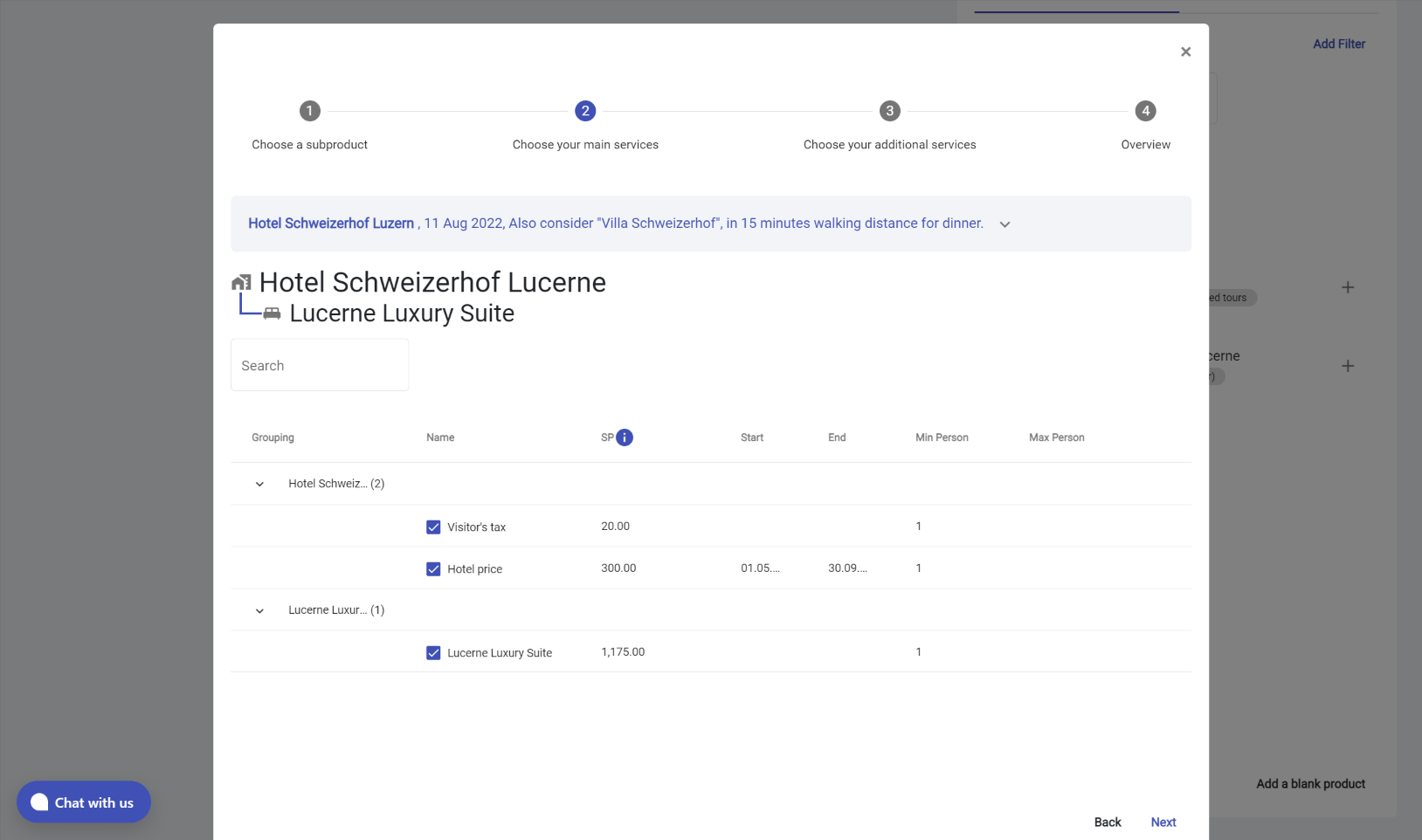](https://help.advatra.com/uploads/images/gallery/2022-08/image-1660209498580.png) 1. If no unique prices exist yet: In this case, the advatra user has to estimate prices to be able to compile an offer. Therefore, he has the possibility to estimate a price based on the old prices via the edit icon in the column selling price. [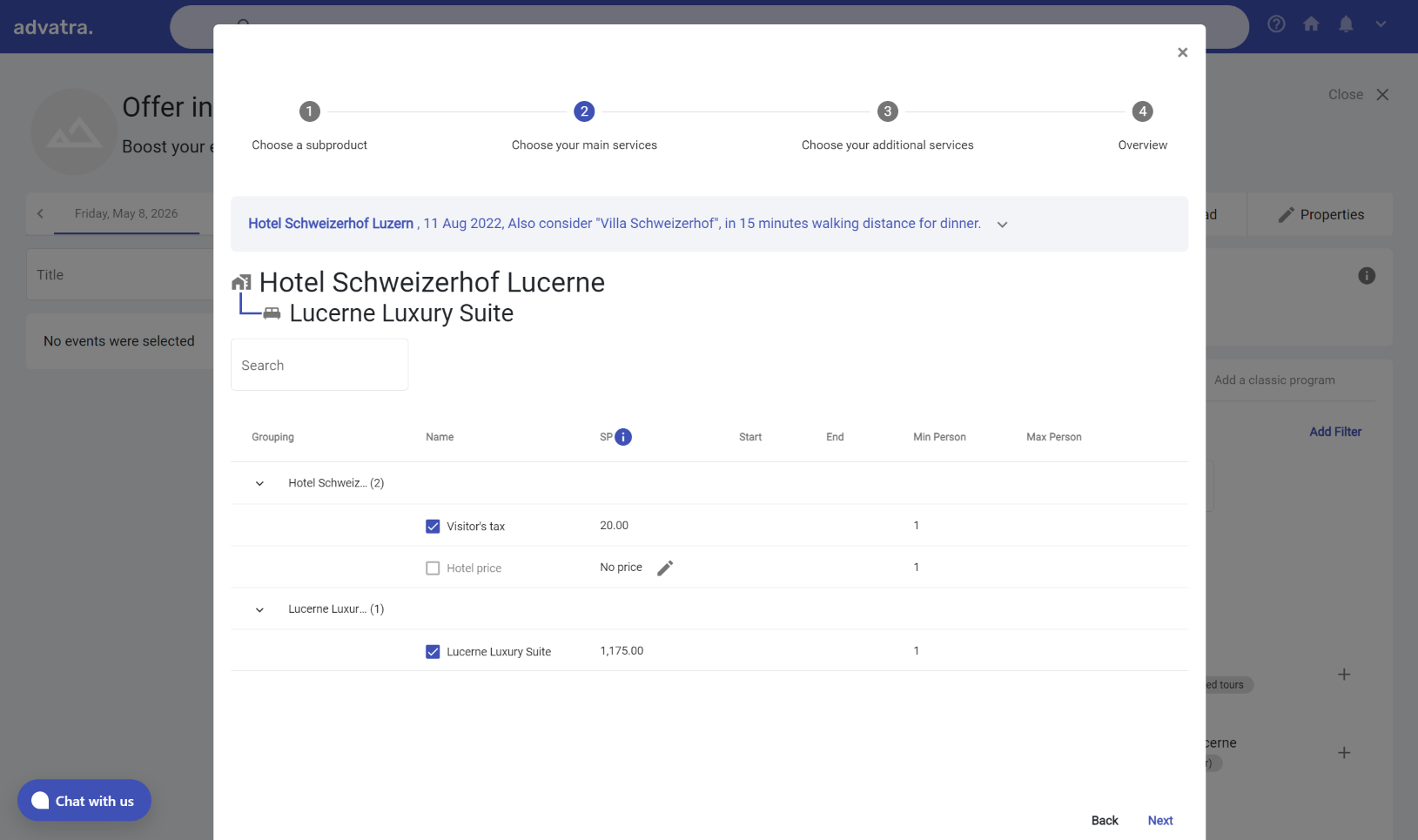](https://help.advatra.com/uploads/images/gallery/2022-08/image-1660209979332.png) # Commissions Sometimes when you send guests to a hotel, the hotel will pay you a commission for the booking. This commission can vary depending on the agreement between the two parties. In order for you to receive this commission, you must send an invoice to the hotel requesting payment. It is important for you to keep accurate records of their bookings and invoices in order to ensure you receive the correct commission payments from hotels. In advatra, you can enter commissions at different locations. ## Product template In the main and additional services, you can activate the "Supplier offers commission"-Toggle to activate the commission feature on this price. You will have to enter the account financial and the VAT of the commission.Enter the commission as a **positive amount.** advatra will later subtract the commission from your purchasing price.
[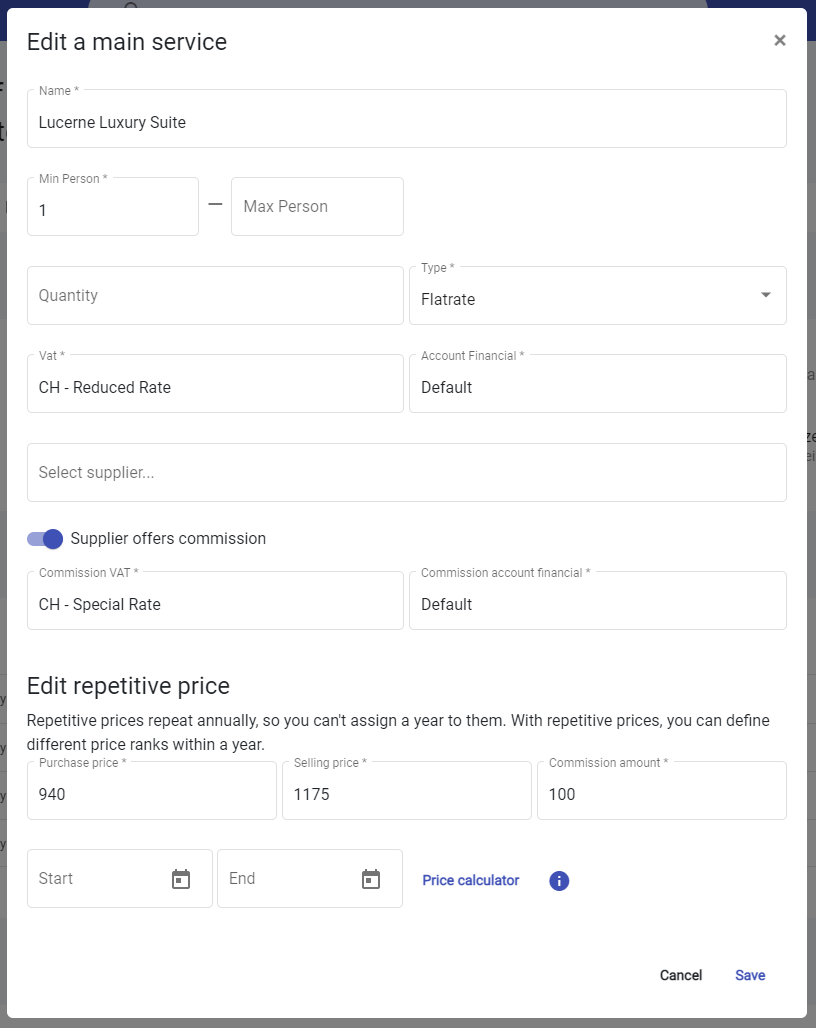](https://help.advatra.com/uploads/images/gallery/2023-03/image-1679321894779.png)[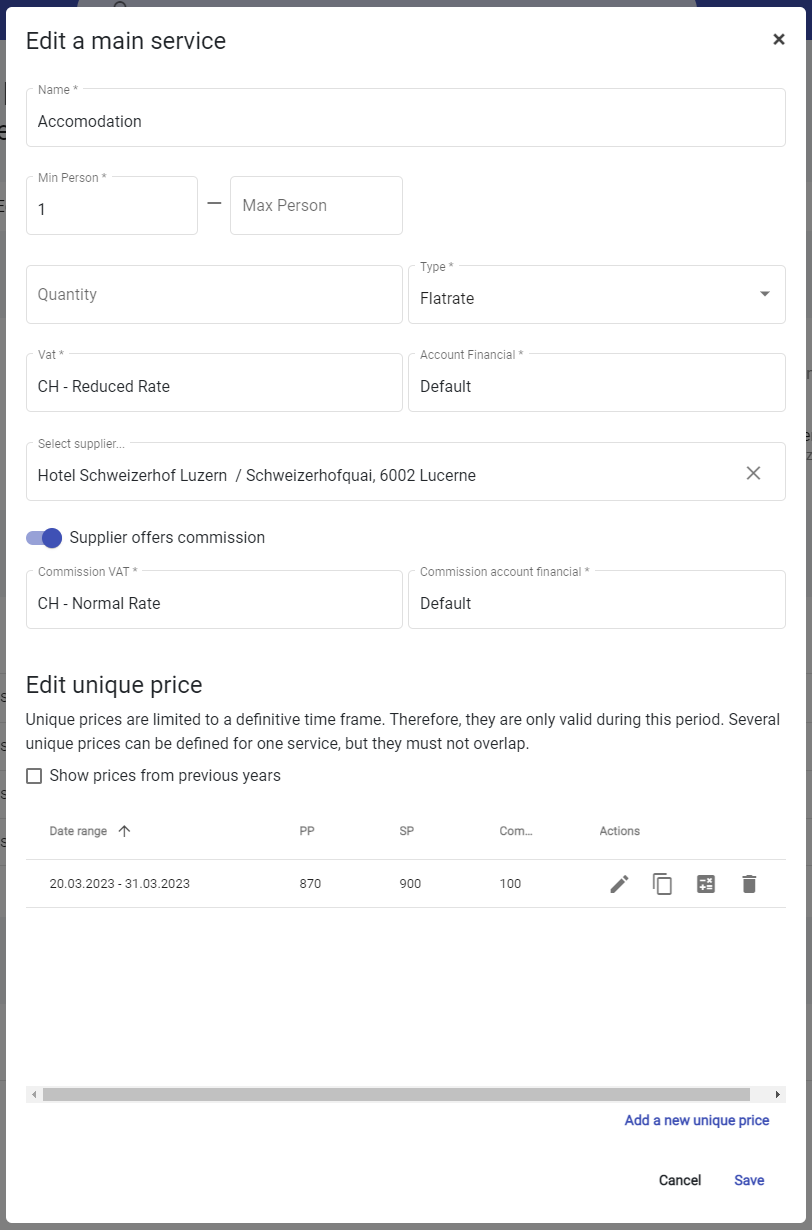](https://help.advatra.com/uploads/images/gallery/2023-03/image-1679321957407.png) Whether it is a Repetitive or a Unique price, you can enter the commission amount for each price as you would enter the purchase and sales price. ## Product price In an Offer or Confirmation, you can change the commission directly on a product for each of the services assigned.By default, advatra will overtake the commission information directly from the product template.
[](https://help.advatra.com/uploads/images/gallery/2023-03/image-1679321799330.png) # Products Products summarize an activity with all its characteristics. # General ## What are products? Products summarize an activity with all its characteristics. *(For example an overnight stay at the Hotel Schweizerhof Lucerne with all the detail information)* Products consist of [product templates](https://help.advatra.com/books/knowledge-base/page/product-templates "Product templates") and [subproduct templates](https://help.advatra.com/books/knowledge-base/page/subproduct-template "Subproduct template"). The following properties are attached to a product: 1. **Supplier** *(Attached to the hotel night is the supplier: Hotel Schweizerhof Luzern AG)* 2. **Product category**: *(Category: 5-star Hotels)* 3. **Location** *(Large: Switzerland, Medium: Lucerne)* A trip consists of several products. Products are therefore the basis for a trip. In order to use products, services (main service and/or additional service) have to be assigned. Products can be created in the administrator area and added to documents.You can also create a new offer, add the elements and prices you like there and save the product to your library!
## Product structure Data for a product is always filled according to the same structure. This structure also shows the relations of all data among each other. - A product template can contain a subproduct template, can have a main [service ](https://help.advatra.com/books/knowledge-base/page/services "Services")and/or an additional service, and has various properties. - A subproduct template is attached to a product template, can have a main service and/or an additional service, and has different properties. [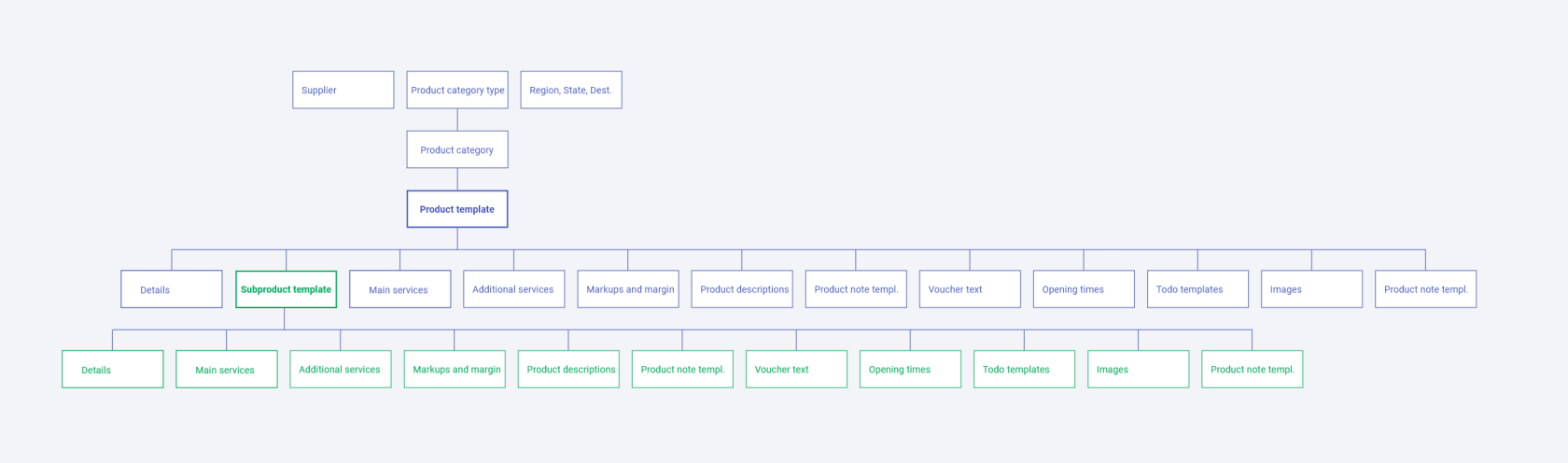](https://help.advatra.com/uploads/images/gallery/2022-06/image-1654691712130.png) ### Product structure in advatra In the application on advatra, the product structure is displayed in the form of a side menu on the product template and the subproduct template. So you know if you are on the main product or subproduct template. [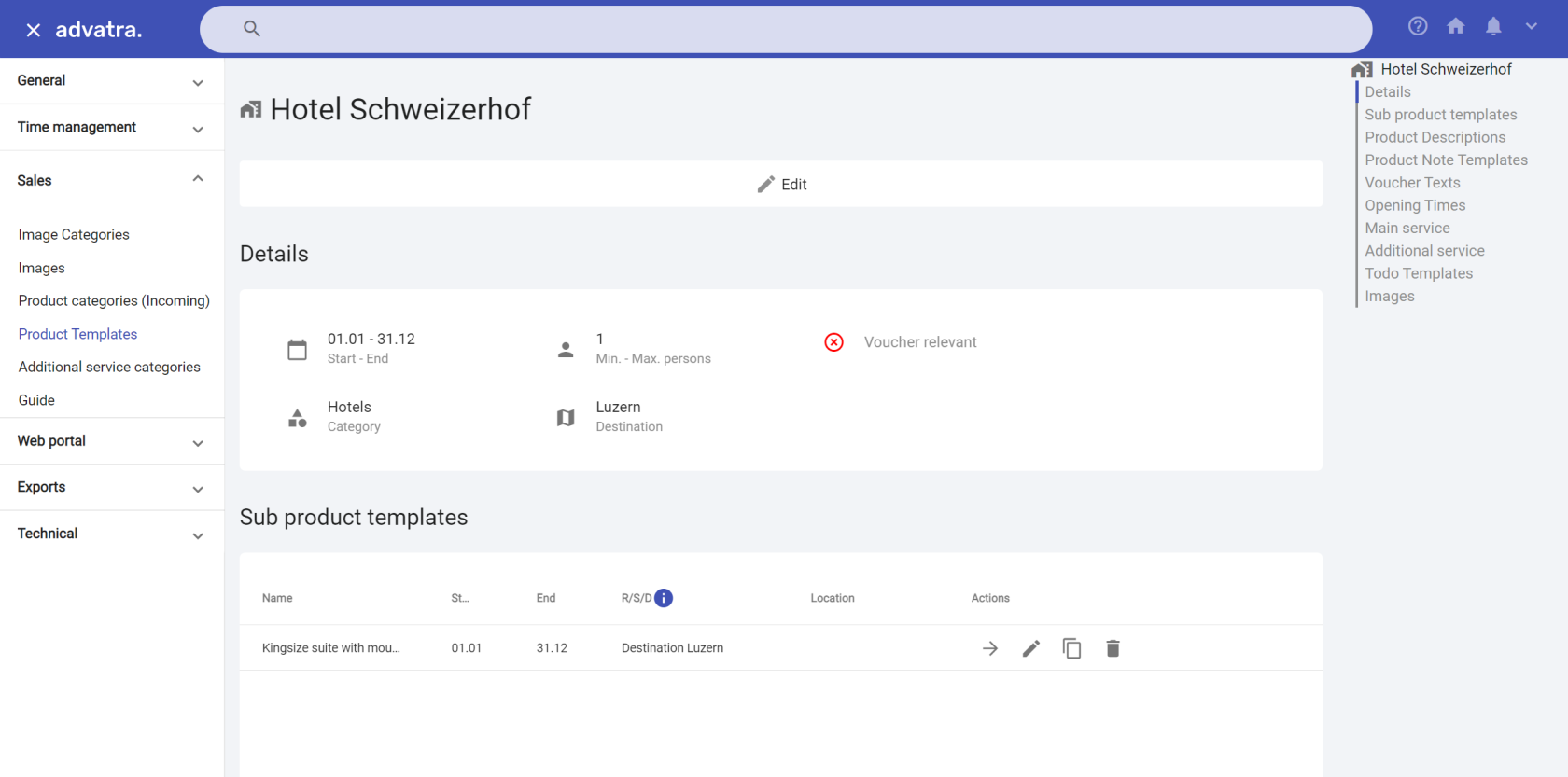](https://help.advatra.com/uploads/images/gallery/2022-06/image-1654691734946.png)Before you create a product template, you must have filled in the following information: **Supplier, Locations, Product categories, Image categories, Images**
Create a product template incoming and fill in the detail information: **Supplier** As soon as you add a supplier, the fields Name and Mail will be filled in automatically, because the information is already stored in the supplier.If you assign a supplier to the product template, all subproduct templates will automatically have the same supplier. However, you can overwrite these as you wish. If you want to store different suppliers for your subproduct templates, do not store a supplier in the product template.
**Min. and Max. Person** If you have a product template where the maximum number of people cannot be defined exactly, such as a hotel, then only insert a minimum number of people. (Min. Person = 1) **Duration** Shows the duration of the activity in hours per day. A product template with the product category type "hotel" should always have at least a duration of 24 hours. **Mail** This email will be used for the automatic email generation features of the to-dos. Mostly this is the booking email address, like *bookings@schweizerhof-luzern.ch.* **Location** A Product template must be linked with a location.If a product template has set one of them, the subproduct template can only use the next smaller entity. (Large > Medium > Small)
**Product categories** Choose from your own created product categories. Once you have created the product template, you can add more information on the product overview page like: - [Subproducts](https://help.advatra.com/books/knowledge-base/page/subproduct-templates "Subproduct templates") - Descriptions - [Notes](https://help.advatra.com/books/knowledge-base/page/product-notes "Product notes") - Voucher texts - [Opening times](https://help.advatra.com/books/knowledge-base/page/opening-times "Opening times") - [Main services](https://help.advatra.com/books/knowledge-base/page/services "Services") - [Additional services](https://help.advatra.com/books/knowledge-base/page/services "Services") - [Markup and margin](https://help.advatra.com/books/knowledge-base/page/markup-and-margin "Markup and margin") - [To-do templates](https://help.advatra.com/books/knowledge-base/page/to-do-templates "To-do templates") - [Images](https://help.advatra.com/books/knowledge-base/page/images "Images") # Subproduct templates A subproduct template is always attached to a [product template](https://help.advatra.com/books/knowledge-base/page/product-templates "Product templates"). A product template can contain several subproduct templates. *(Product template: Hotel Schweizerhof Lucerne, subproduct template 1: double room, subproduct template 2: suite with lake view)* A trip consists of several product templates with the desired subproduct templates. ## Product structure Data for a product is always filled according to the same structure. This structure also immediately shows the relationships of all data among each other. - A product template can contain a subproduct template, can have a main service and/or an additional service, and has different properties. - A subproduct template is attached to a product template, can have a main service and/or an additional service, and has different properties. [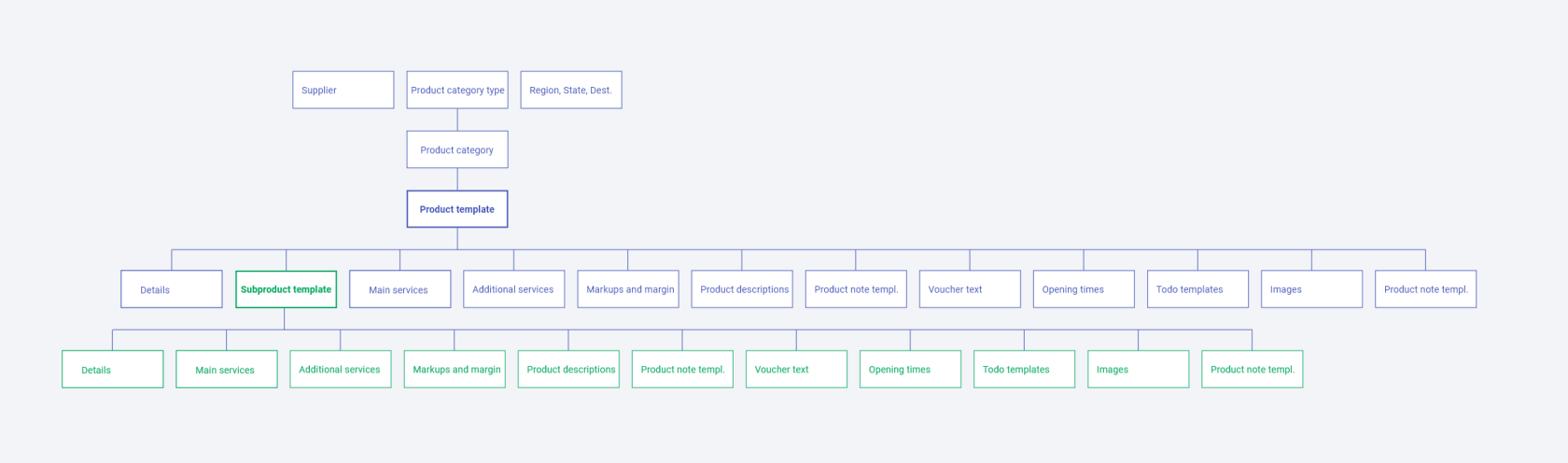](https://help.advatra.com/uploads/images/gallery/2022-06/image-1654693134921.png) ## CreateBefore you create a subproduct template template, you must have created a [product template](https://help.advatra.com/books/knowledge-base/page/product-templates "Product templates")
Fill in the details: **Supplier, Date, Mail, Destination** When creating a subproduct template, it takes over the information from the main product for: Supplier, date, mail and destination.If you have not assigned a supplier to your product template, you can store different suppliers on your subproduct templates. Here, too, you can overwrite them as you wish.
**Location** A Product template must be linked with a location.If a product template has set one of them, the subproduct template can only use the next smaller entity. (Large > Medium> Small)
Once you have created the subproduct template, you can add more information on the product overview page like: - Descriptions - [Notes](https://help.advatra.com/books/knowledge-base/page/product-notes "Product notes") - Voucher texts - [Opening times](https://help.advatra.com/books/knowledge-base/page/opening-times "Opening times") - [Main services](https://help.advatra.com/books/knowledge-base/page/services "Services") - [Additional services](https://help.advatra.com/books/knowledge-base/page/services "Services") - [Markup and margin](https://help.advatra.com/books/knowledge-base/page/markup-and-margin "Markup and margin") - [To-do templates](https://help.advatra.com/books/knowledge-base/page/to-do-templates "To-do templates") - [Images](https://help.advatra.com/books/knowledge-base/page/images "Images") - # Product notes **Menu: Sales → Product templates/Subproduct → Product note template** Note templates in different languages can be attached to a product. The note templates are displayed in the document as soon as the product is added. ## Create and edit Choose between internal and external note templates **Internal** note templates are displayed in a document under Internal notes and cannot be included in an Itinerary. **External** note templates are displayed in a document under Product notes and can be displayed in an Itinerary.Note that the language of the notes must match the language of the document for the notes to be displayed. (The document language can be defined when creating or edited under Properties).
# Opening times **Menu: Sales → Product templates/Subproduct templates → Opening times** Opening hours of product templates and subproduct templates can be stored directly on the respective template. If you have two different opening times on a Monday, for example on Mondays from 11 am to 1 pm and from 7 pm to 11 pm, then you store one opening time on Monday at noon and a second one in the evening.If you do not enter opening hours, the 24 hours simply apply. You do not have to enter opening hours from 00:00 - 23:59.
Holidays are entered globally into the system here: [Holidays](https://help.advatra.com/books/knowledge-base/page/holidays "Holidays"). # Services ## What is a service? 1. Services can be divided into main services and additional services. 2. Several main and additional services can be created with different prices. 3. Different prices are called price categories, one or more of which are assigned to products. 4. Main services and additional services are always linked to a [product template](https://help.advatra.com/books/knowledge-base/page/product-templates "Product templates") or a [subproduct template](https://help.advatra.com/books/knowledge-base/page/subproduct-templates "Subproduct templates"). ### Advantages of services - With services, price structures can be defined for a group of products and not only for single products. - Price changes can be made across a group of products with just one click. - Services can be used to determine which products are best suited to a trip, at what times, for what number of participants, etc. ### Structure of services - A product template can be linked to a main service. The additional service is optional. - A subproduct template can be linked to a main service. The additional service is optional. [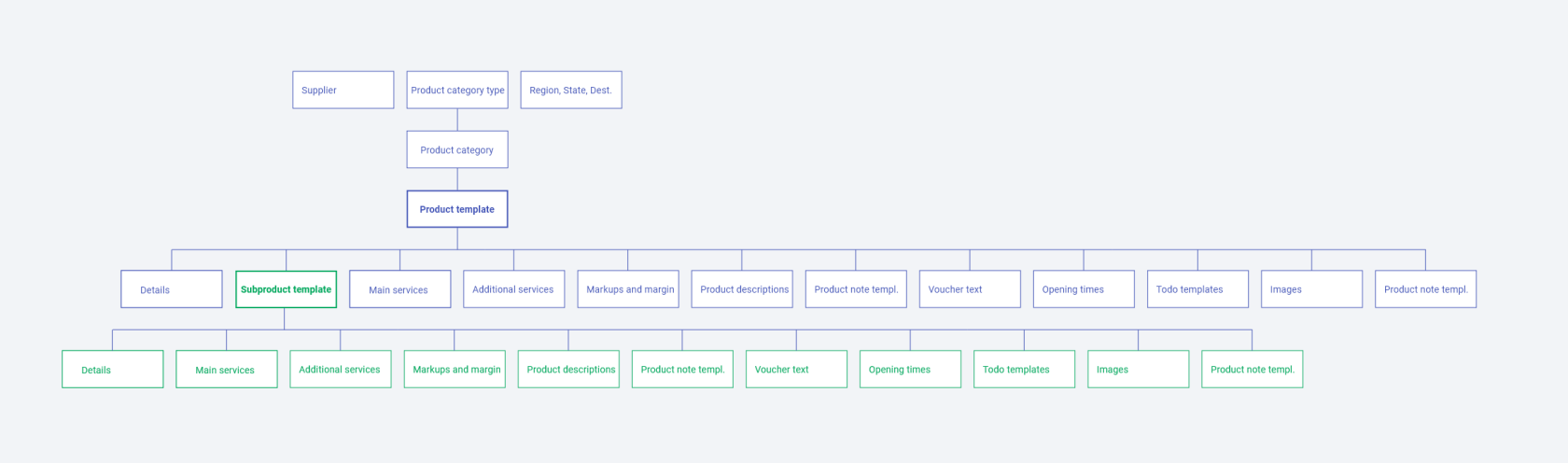](https://help.advatra.com/uploads/images/gallery/2022-06/image-1654693341444.png) ## Additional service category An additional service has an [additional service category](https://help.advatra.com/books/knowledge-base/page/additional-service-categories "Additional service categories"). With this, the services can be divided. This helps later while adding the product to an offer. # Additional service categories **Menu: Sales → Additional service categories** Additional services can be divided into additional service categories. These simplify the process of adding product templates to a document. ## CreateFor example, the to-do template "Reserve a chauffeur" is attached to the product template "Limousine Service". Or the product template "Viktoria Jungfrau Grand Hotel" has the To-do template "Check hotel availability".
**Name** Name of the to-do template **Deadline in days** For example: 5 → When is the deadline of this to-do, based on the "due by" value. **Due by** **from creation day**: the to-do always appears 5 days after the document has been created **before start date**: the to-do always appears 5 days before the start date of the trip **Type** the to-dos can only be used on the selected document type: offer incoming or confirmation incoming **Internal or external** **Internal** to-dos contain information that is only relevant for your staff, i.e. for internal use The collected information of the **external** to-dos can be viewed by your clients and/or travellers - depending on your export configuration. ## How does a to-do template become a to-do? Create or navigate to a documentTo-do templates with the type offer can only be added to an Offer, To-do templates with the type confirmation can only be added to a confirmation.
Under "More → To-dos" there is an overview of your to-dos on your document. [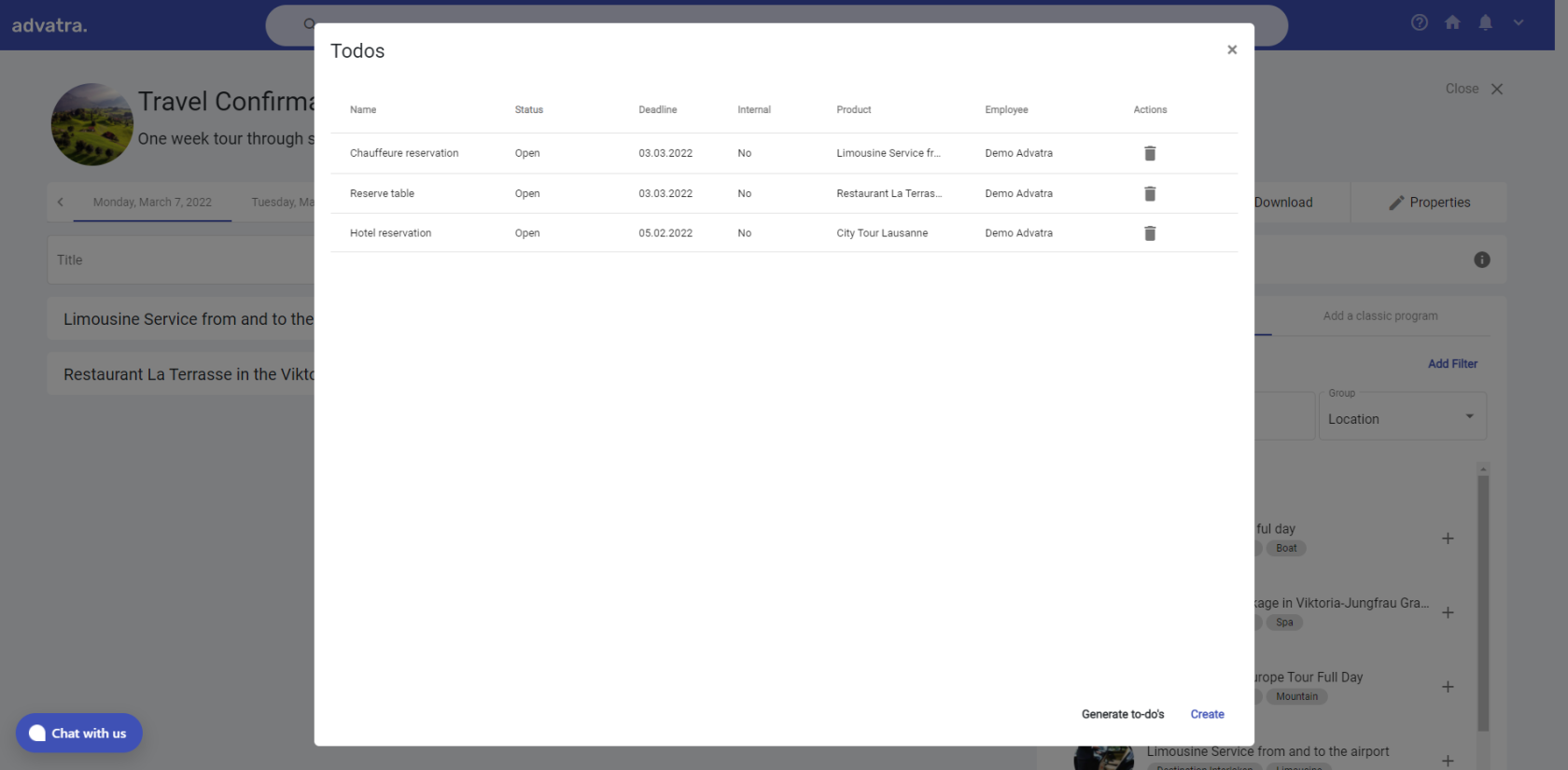](https://help.advatra.com/uploads/images/gallery/2022-06/image-1654694871881.png) Under generate to-dos, the to-do templates that are relevant for the trip can be selected and added to the document. To-dos are created from the to-do templates when they are added.Added to-dos are automatically assigned to the "Responsible employee operations". The Responsible employee operations can be defined in the dossier setting.
[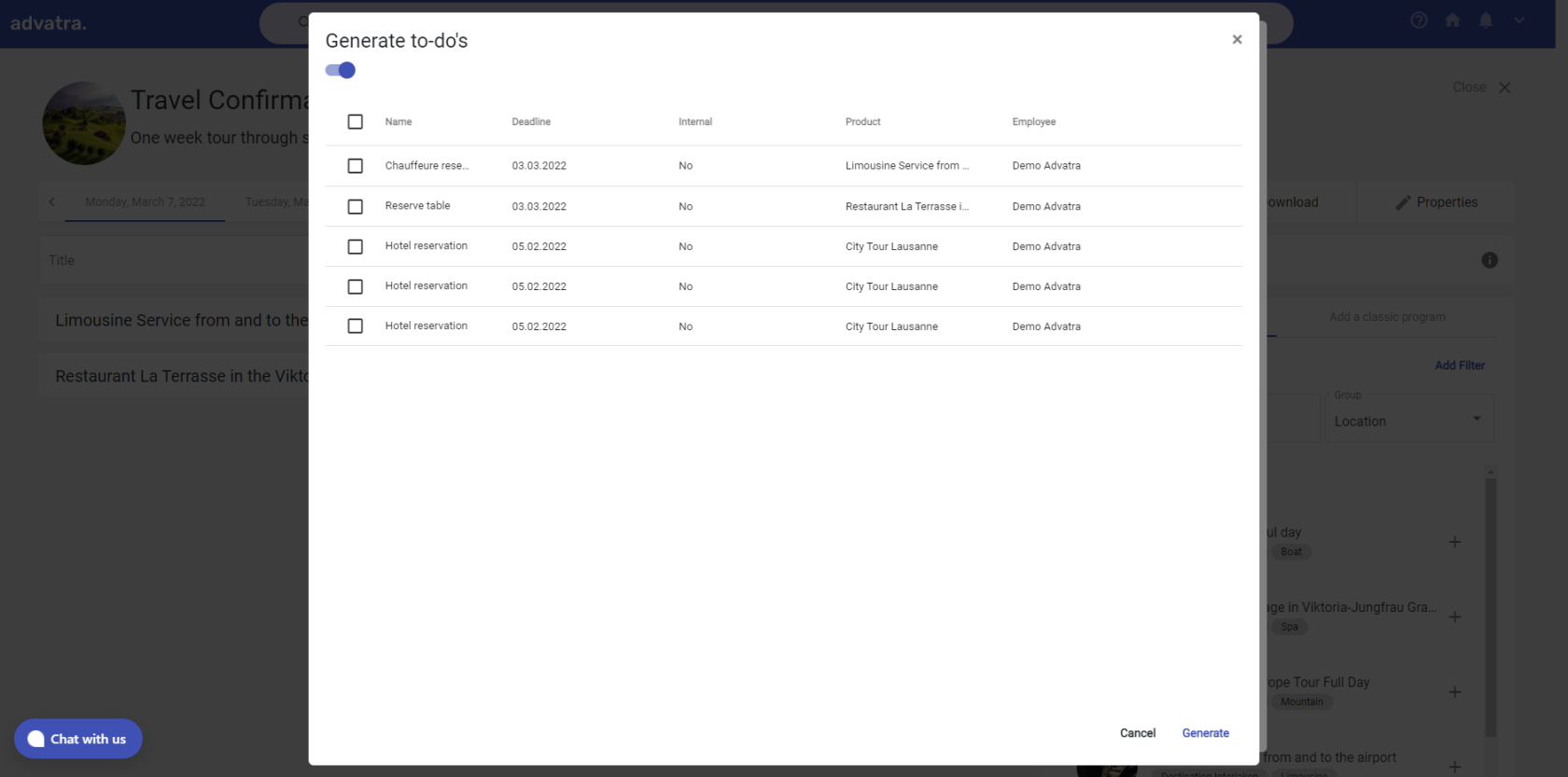](https://help.advatra.com/uploads/images/gallery/2022-06/image-1654694904329.png) ## How are to-dos processed? To-dos are automatically assigned to the "Responsible employee operations". He finds an overview of his to-dos on his dashboard. All to-dos and the current status can be viewed under Show all. A to-do can be sent directly by e-mail: For example, the to-do Reserve chauffeur is linked to the email address of the product template that offers the limousine service. (Product template = limousine service, attached mail address = contact person). To-dos can be dragged and dropped between the individual columns. # To-do return values Create return values: **Menu: Administration → Sales → Product templates → To-do templates** Use return values: **Dashboard → Show all to-dos → Drag to-do to "Closed" column** ## What Return values are information that is requested when the to-do is completed. For example, one has the to-do template "Reserve table". The return value for this can be "Reservation time" or "Table number". [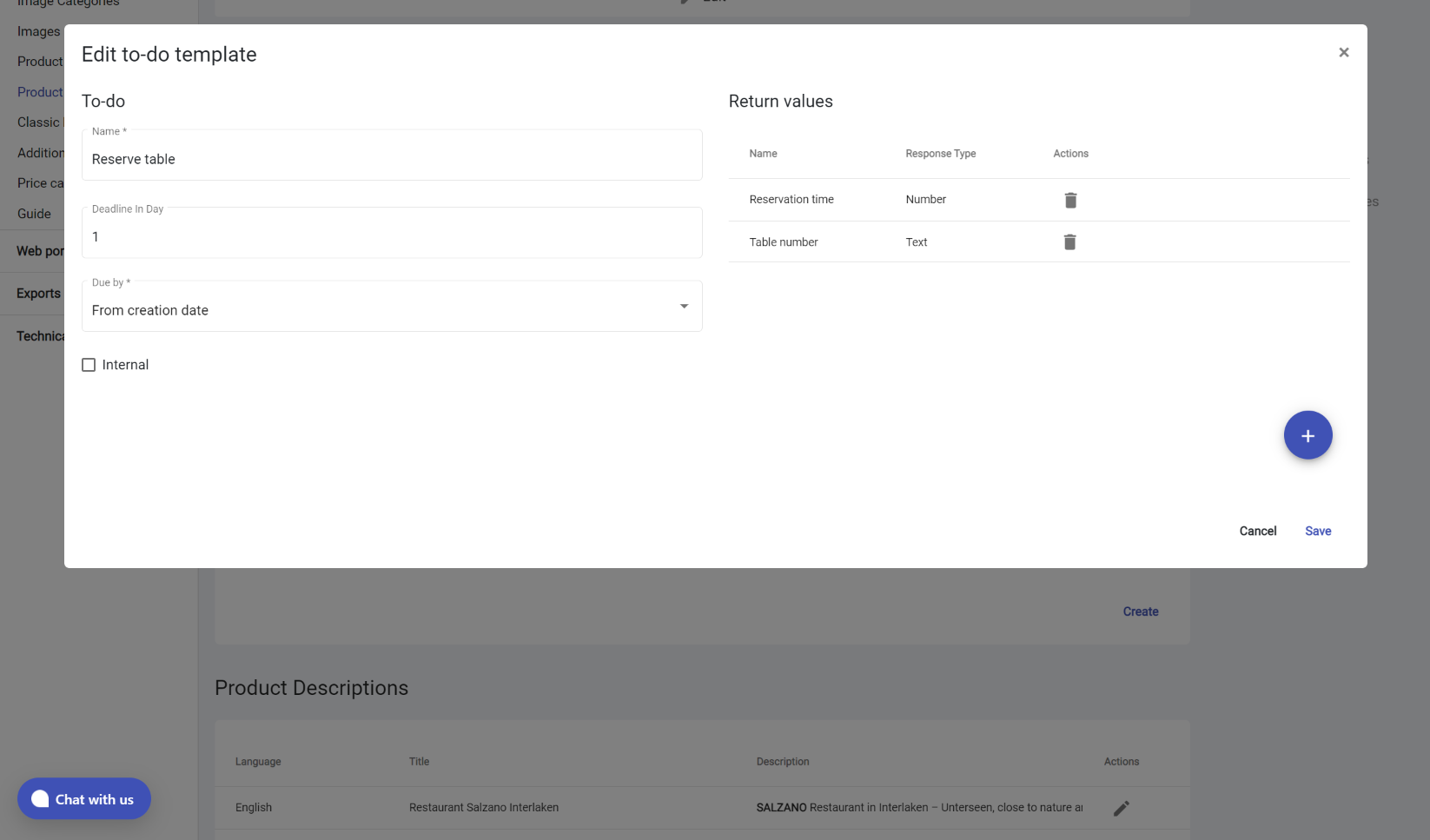](https://help.advatra.com/uploads/images/gallery/2022-06/image-1654695273313.png) ## Where are return values defined? Return values are generated in the product template when creating to-do templates. 1. Create your to-do template and save it. 2. A "Return values" area appears on the right 3. Click on the blue round "add button" and then double-click in the fields 1. Name: Name of the return value 2. Response type: Text, Number, Travel Guide (most of the time the return value is a text) 4. Click on the "Done" tick. ## How are return values queried? Return values are requested on the to-do board as soon as the to-do is dragged into the "Closed" column. The return values can be entered there and viewed again and again. [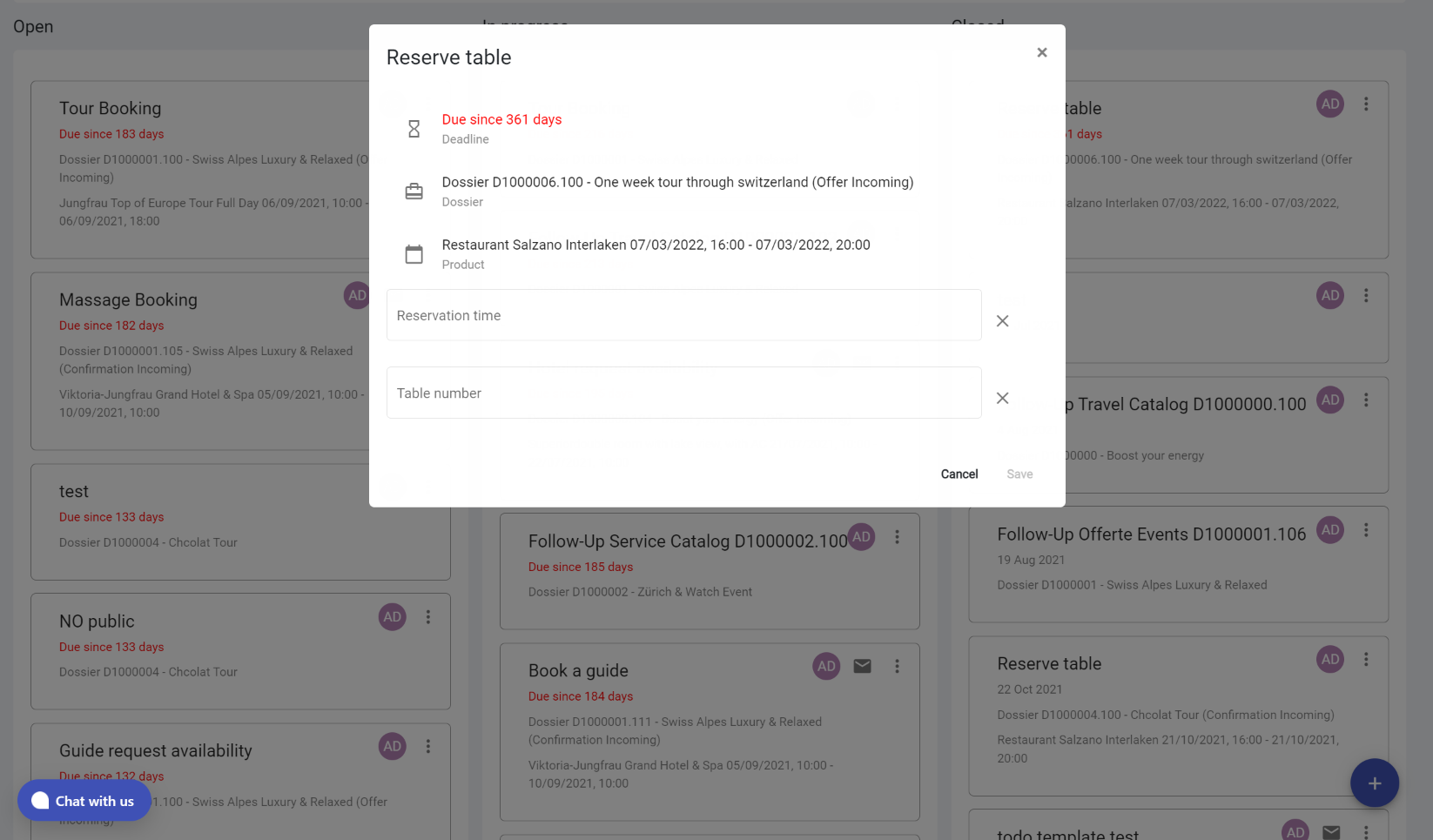](https://help.advatra.com/uploads/images/gallery/2022-06/image-1654695471532.png) # Examples ## Hotel (Schweizerhof Lucerne) [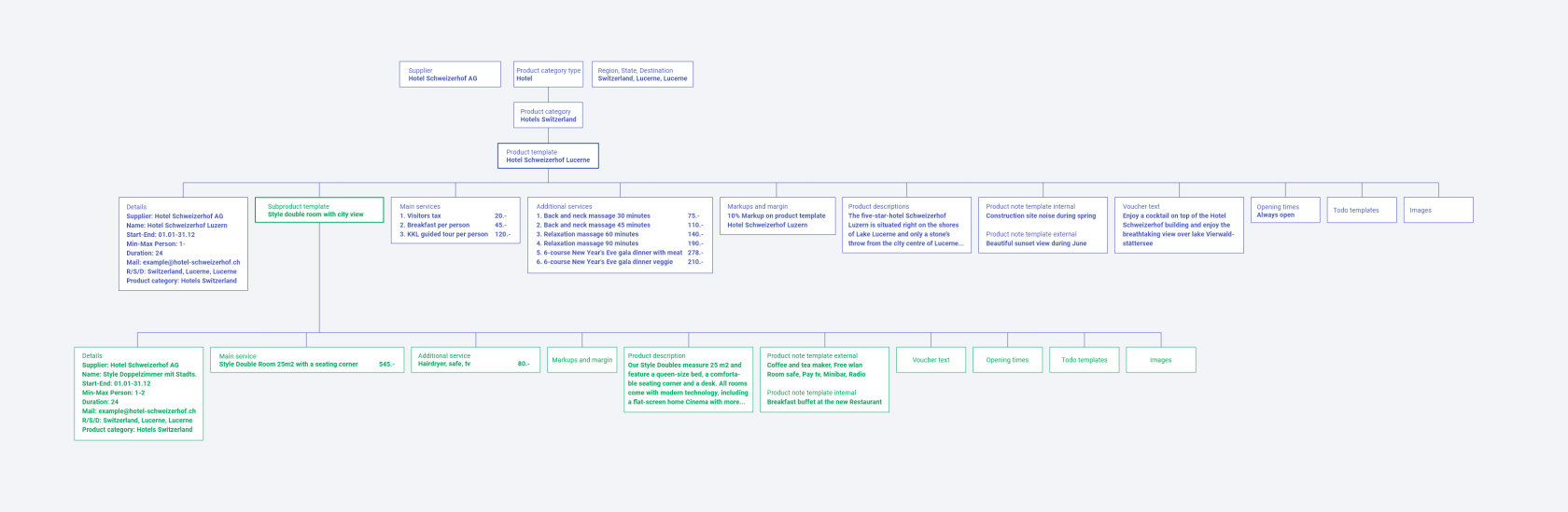](https://help.advatra.com/uploads/images/gallery/2022-06/image-1654693906107.png) ### Details Supplier: Hotel Schweizerhof AG Name: Hotel Schweizerhof Lucerne Start-End: 01.01-31.12 Min-Max Person: 1- Duration: 24 Mail: