For example, the to-do template "Reserve a chauffeur" is attached to the product template "Limousine Service". Or the product template "Viktoria Jungfrau Grand Hotel" has the To-do template "Check hotel availability".
**Name** Name of the to-do template **Deadline in days** For example: 5 → When is the deadline of this to-do, based on the "due by" value. **Due by** **from creation day**: the to-do always appears 5 days after the document has been created **before start date**: the to-do always appears 5 days before the start date of the trip **Type** the to-dos can only be used on the selected document type: offer incoming or confirmation incoming **Internal or external** **Internal** to-dos contain information that is only relevant for your staff, i.e. for internal use The collected information of the **external** to-dos can be viewed by your clients and/or travellers - depending on your export configuration. ## How does a to-do template become a to-do? Create or navigate to a documentTo-do templates with the type offer can only be added to an Offer, To-do templates with the type confirmation can only be added to a confirmation.
Under "More → To-dos" there is an overview of your to-dos on your document. [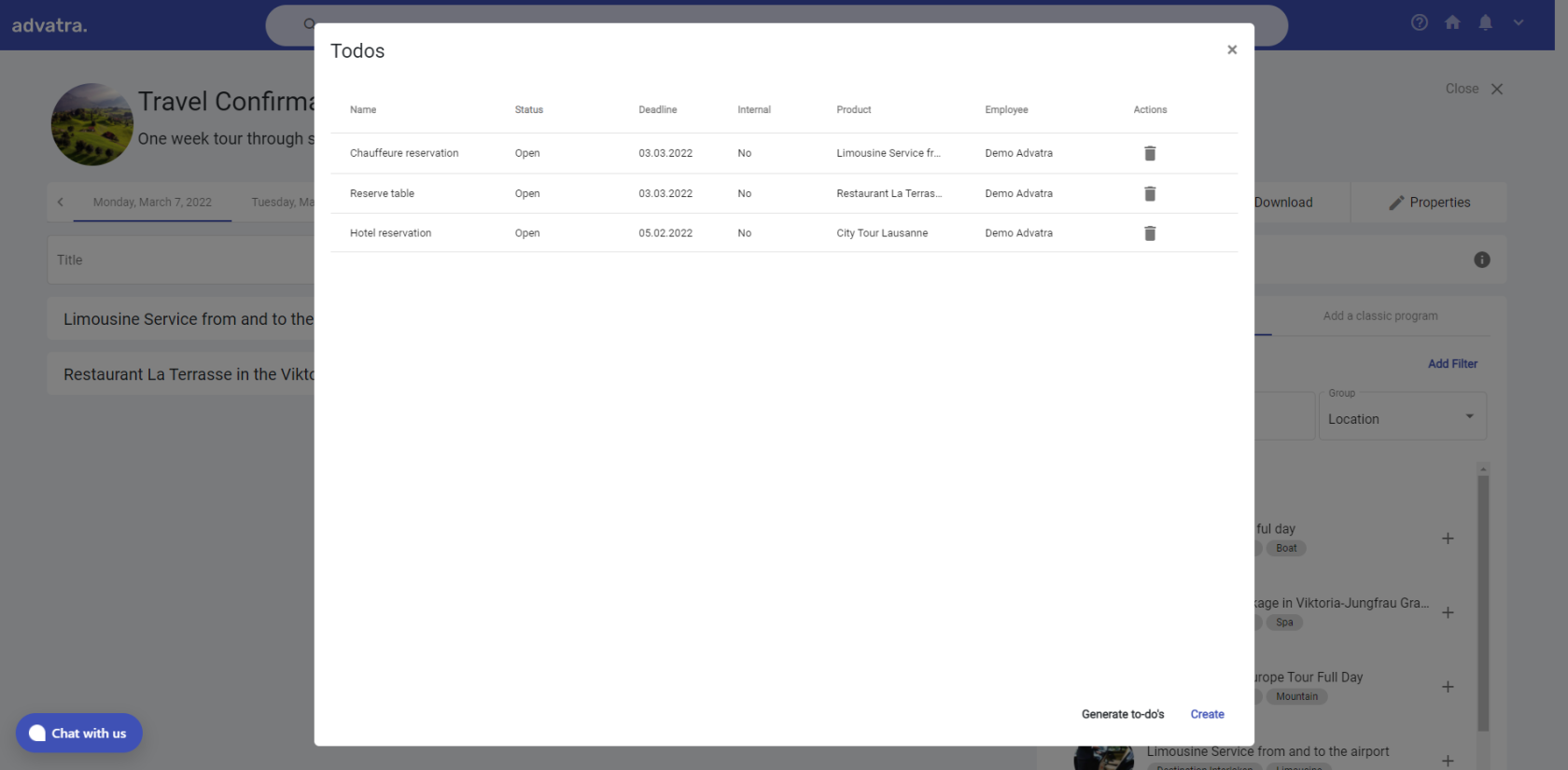](https://help.advatra.com/uploads/images/gallery/2022-06/image-1654694871881.png) Under generate to-dos, the to-do templates that are relevant for the trip can be selected and added to the document. To-dos are created from the to-do templates when they are added.Added to-dos are automatically assigned to the "Responsible employee operations". The Responsible employee operations can be defined in the dossier setting.
[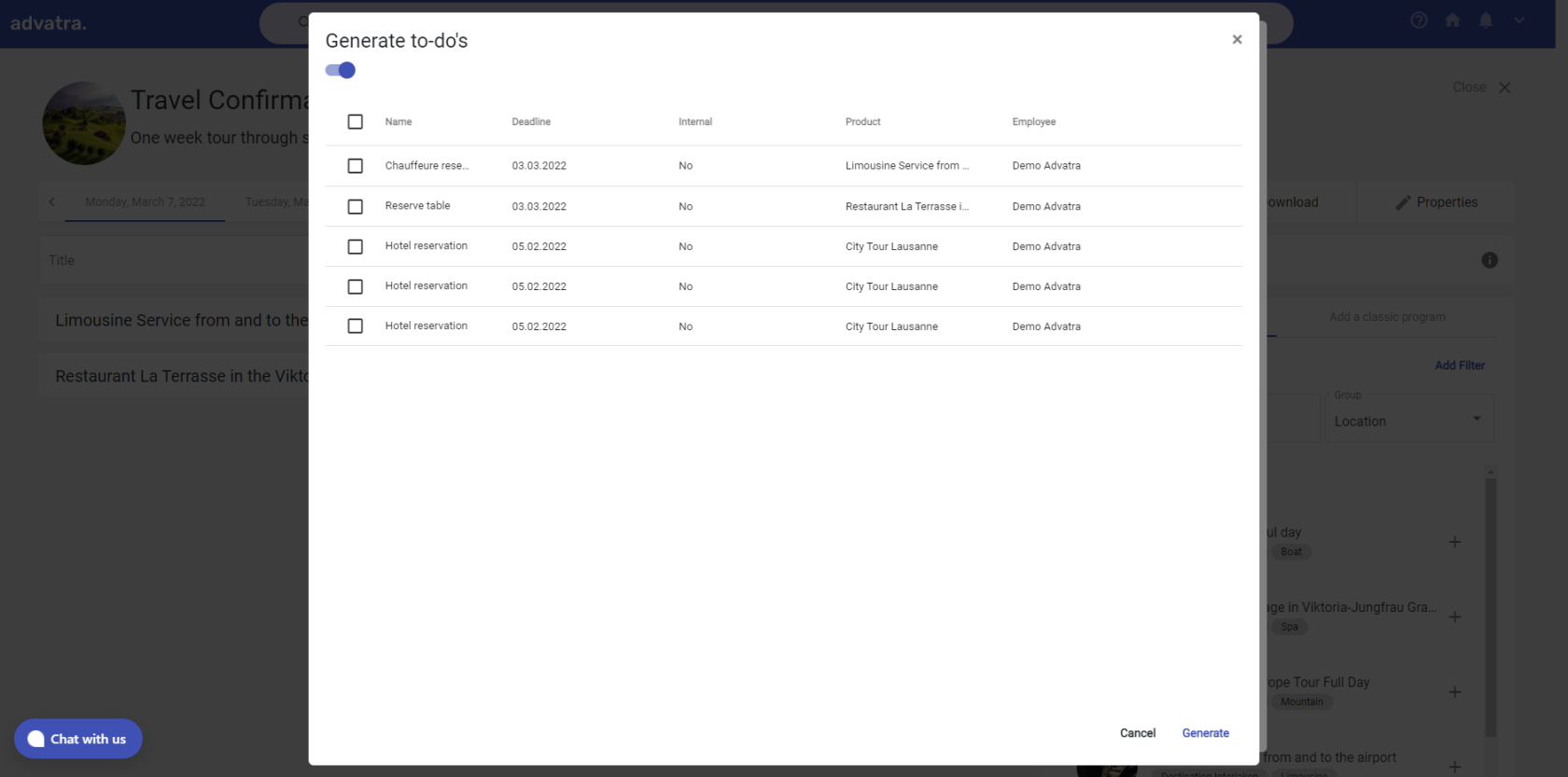](https://help.advatra.com/uploads/images/gallery/2022-06/image-1654694904329.png) ## How are to-dos processed? To-dos are automatically assigned to the "Responsible employee operations". He finds an overview of his to-dos on his dashboard. All to-dos and the current status can be viewed under Show all. A to-do can be sent directly by e-mail: For example, the to-do Reserve chauffeur is linked to the email address of the product template that offers the limousine service. (Product template = limousine service, attached mail address = contact person). To-dos can be dragged and dropped between the individual columns.